
Diurna User Guide
Step by step: how firm admins, clerks and business owners work in Diurna, from adding the first client to closing the month.
Getting started
This guide is for everyone who uses Diurna: the payroll firm's admin, the clerks, and the owners of the client businesses.
Diurna helps a payroll firm and its client businesses (restaurants, hotels, cafés) record what differs from the planned working time, so that the firm can hand correct hours to payroll at the end of each month.
Four kinds of people are involved.
| Who | What they do |
|---|---|
| Firm admin | Sets up the firm, adds client businesses, invites clerks and business owners, switches modules on and off, sets the payroll cut-off and the reminder days, and can reopen a closed month. |
| Clerk | Works on the clients assigned to them: adds employees, plans, checks entries, closes the month and hands over to payroll. |
| Business owner | Runs the client business. Reports sick days, holidays, overtime and other changes in a chat, and checks the entries. |
| Employees | Have no login and no app. Their weekly schedule is their planned working time. |
Use the web app at app.diurna.eu or the phone app Diurna, available in the App Store and Google Play. The login is the same on both. The firm admin and clerks start on the Dashboard. The business owner starts in the Chat Assistant.
Your first login
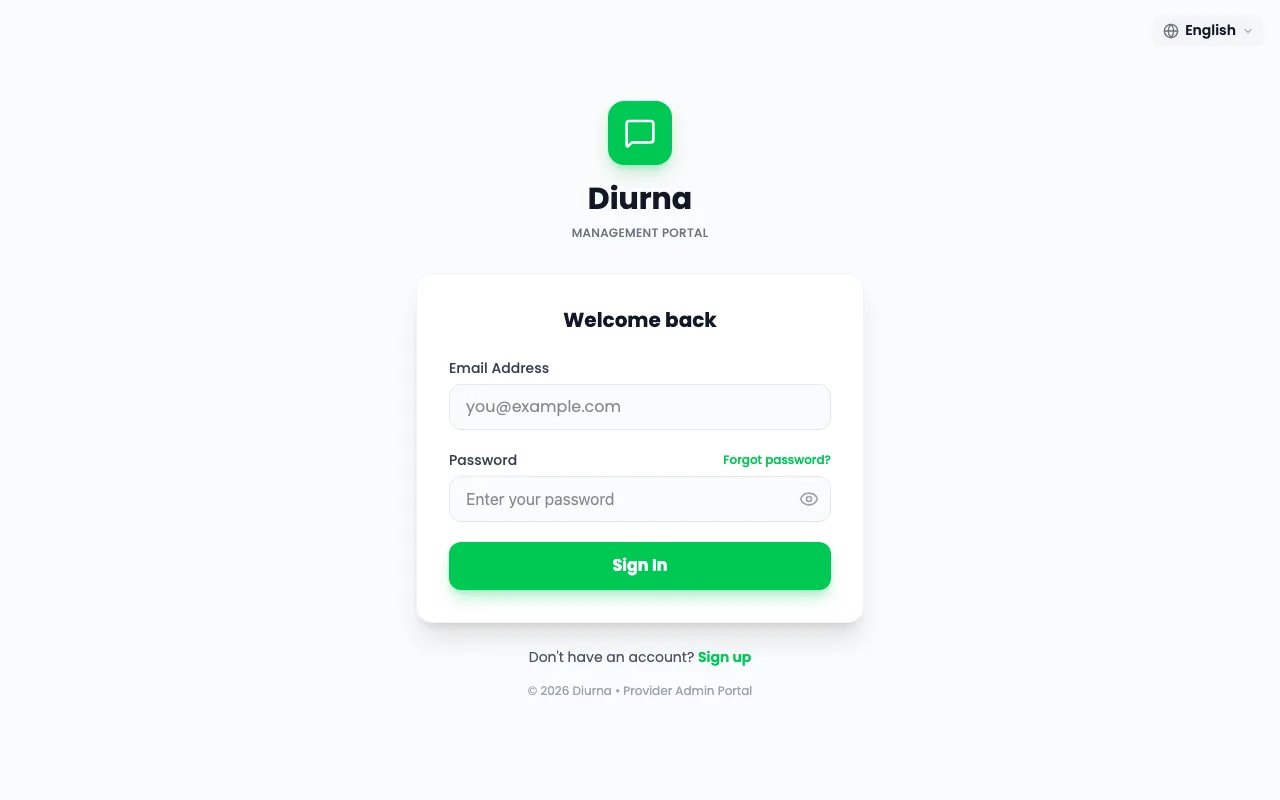
- The firm signs up on the web app. Diurna approves the firm, and an email with a link follows.
- Open the link and set your password.
- Select Sign In, then read and accept the Terms & Conditions with I Accept or Accept All.
- The firm admin completes the Complete Your Setup form: Contact Name, Contact Email, Country and Company Name.
- Follow the short guided tour. You can restart it under Settings, tab General.
The country cannot be changed after this step. If it needs to change, contact Diurna support at www.diurna.eu.
Clerks and business owners do not sign up. The firm admin invites them by email, and they set a password from the link. A business owner must use that invitation. Signing up alone in the phone app creates a separate business that is not a client of the firm.
Good to know
- Diurna logs you out automatically after 15 minutes without activity. A warning, Session Expiring, appears first, with Stay Logged In.
- Forgot your password? Use Forgot password? on the sign-in page.
- In the phone app you can lock the app with Face ID or a fingerprint: switch on Biometric unlock in Settings.
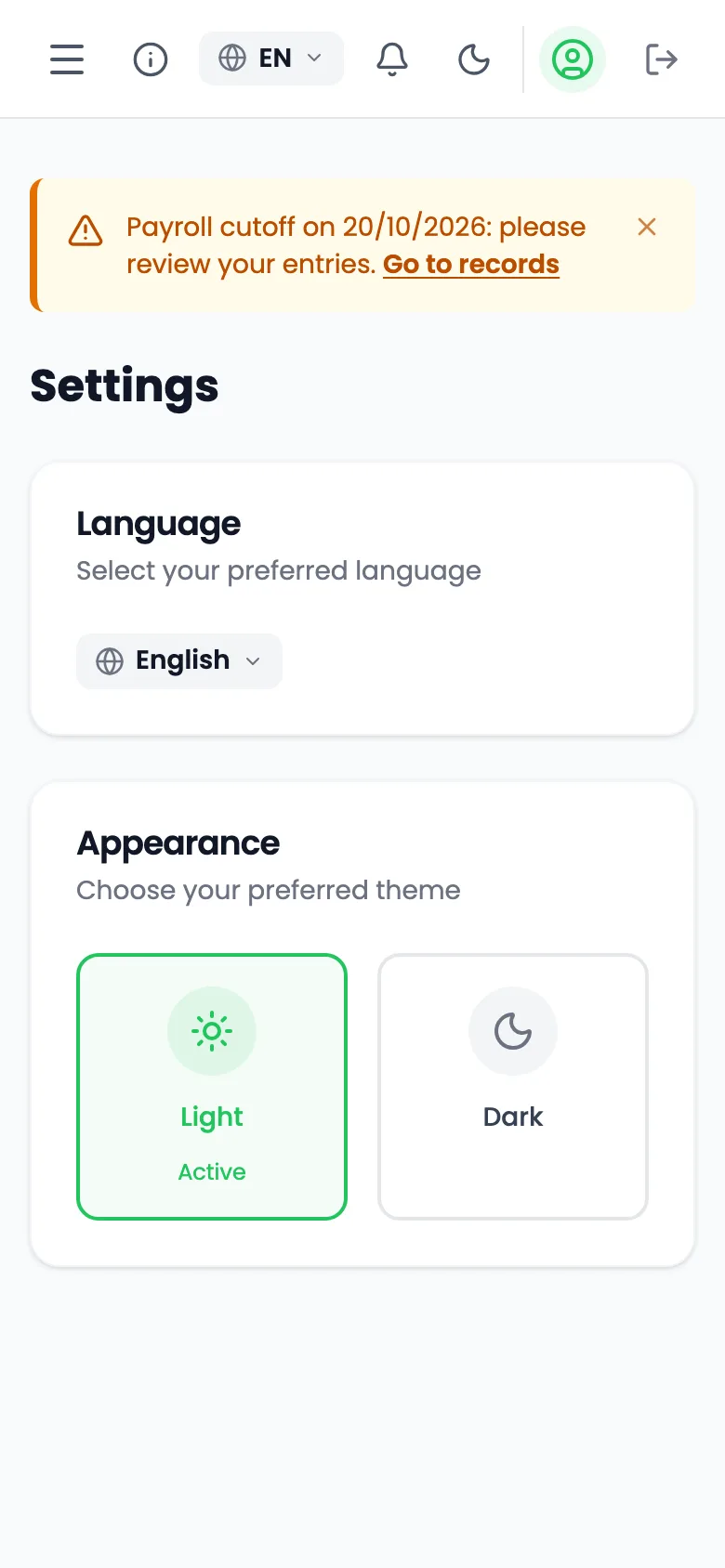
- Seven languages are available: Italiano, English, Français, Deutsch, Nederlands, Español and Português. Choose yours under Settings, Language. You can also pick Light or Dark mode there.
- The Documents page holds the legal documents and this guide.
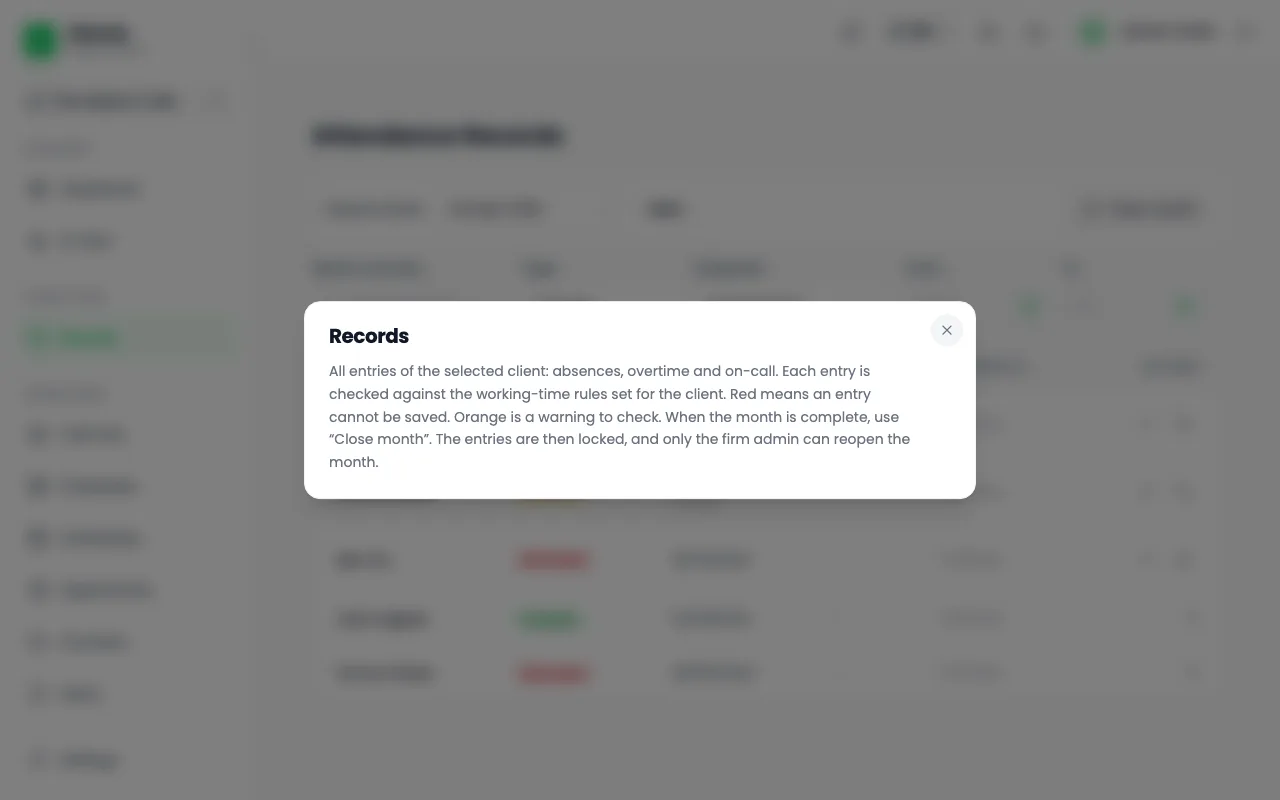
- Every main page has an (i) button in its header, Help for this page. It opens a short explanation and, where one exists, a short video with captions and voice.
- Notifications appear in the app. Some also arrive by email and, in the phone app, as push messages.
Part 1: For the firm admin
This part is for you if you run the payroll firm in Diurna. You set things up once. Planning and reports are the clerk's work, not yours.
Add a client business
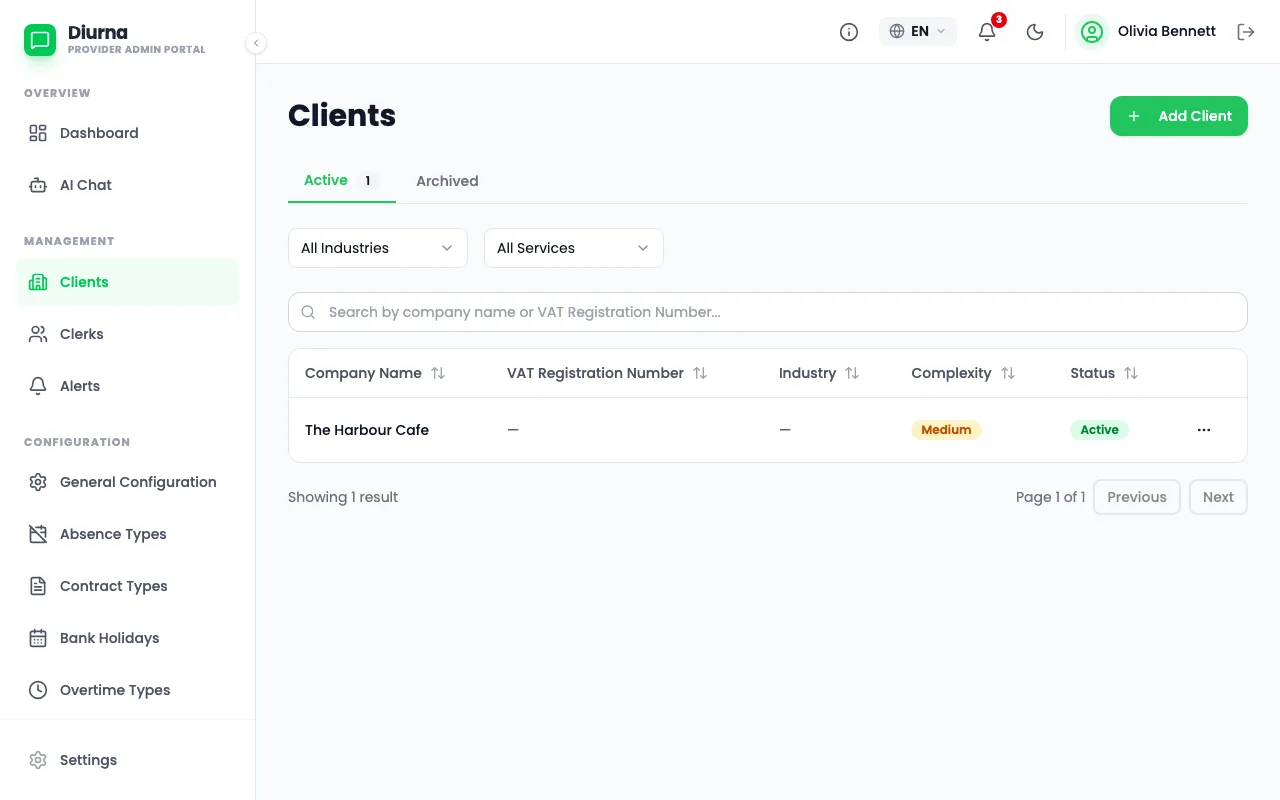
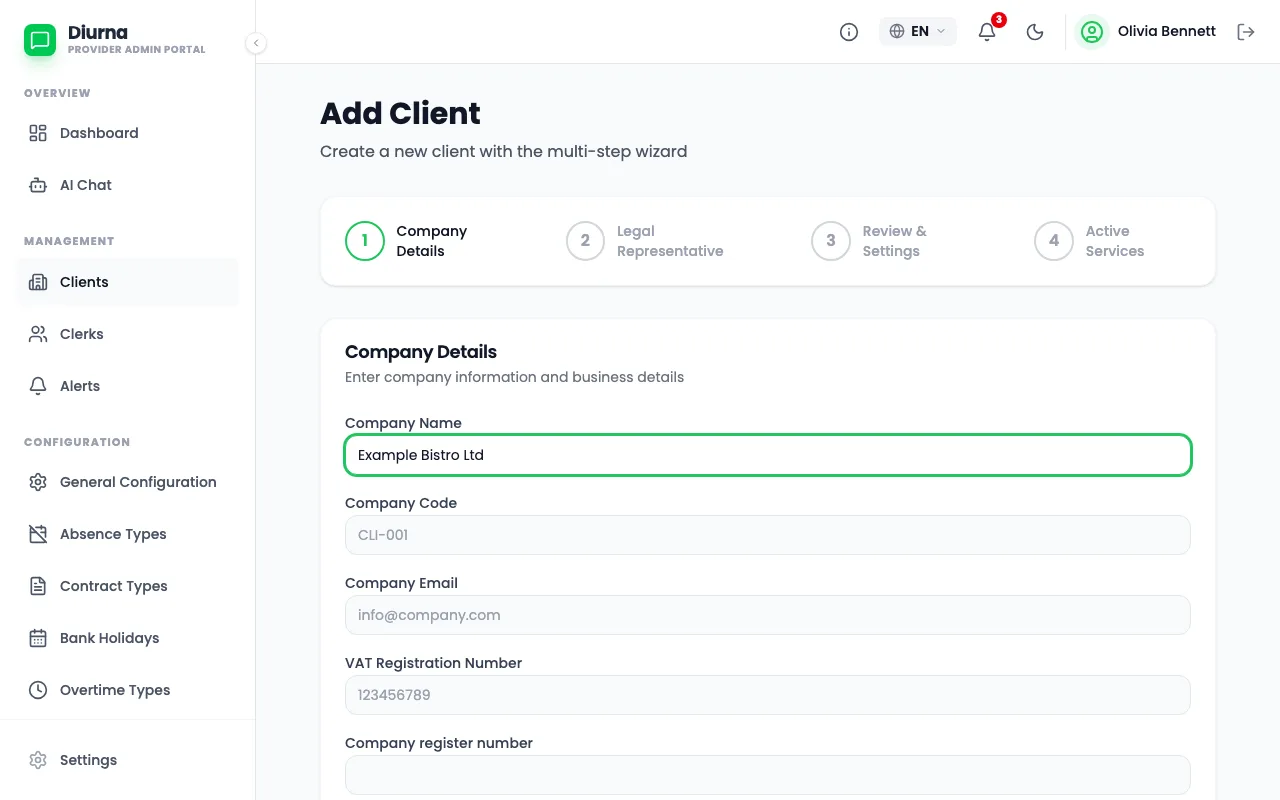
- Open Clients and start a new client.
- Go through the four steps: Company Details, Legal Representative, Review & Settings and Active Services.
- In Review & Settings, enter or review the limits for this client, such as the maximum hours per day and per shift.
- Select Create Client. The Users tab opens with the invite dialog ready.
You do not choose a labor profile. Diurna applies the generic rules automatically, which means only the limits you set for the client. A client business in Austria always gets the Austrian rules, never the generic ones.
Invite the business owner
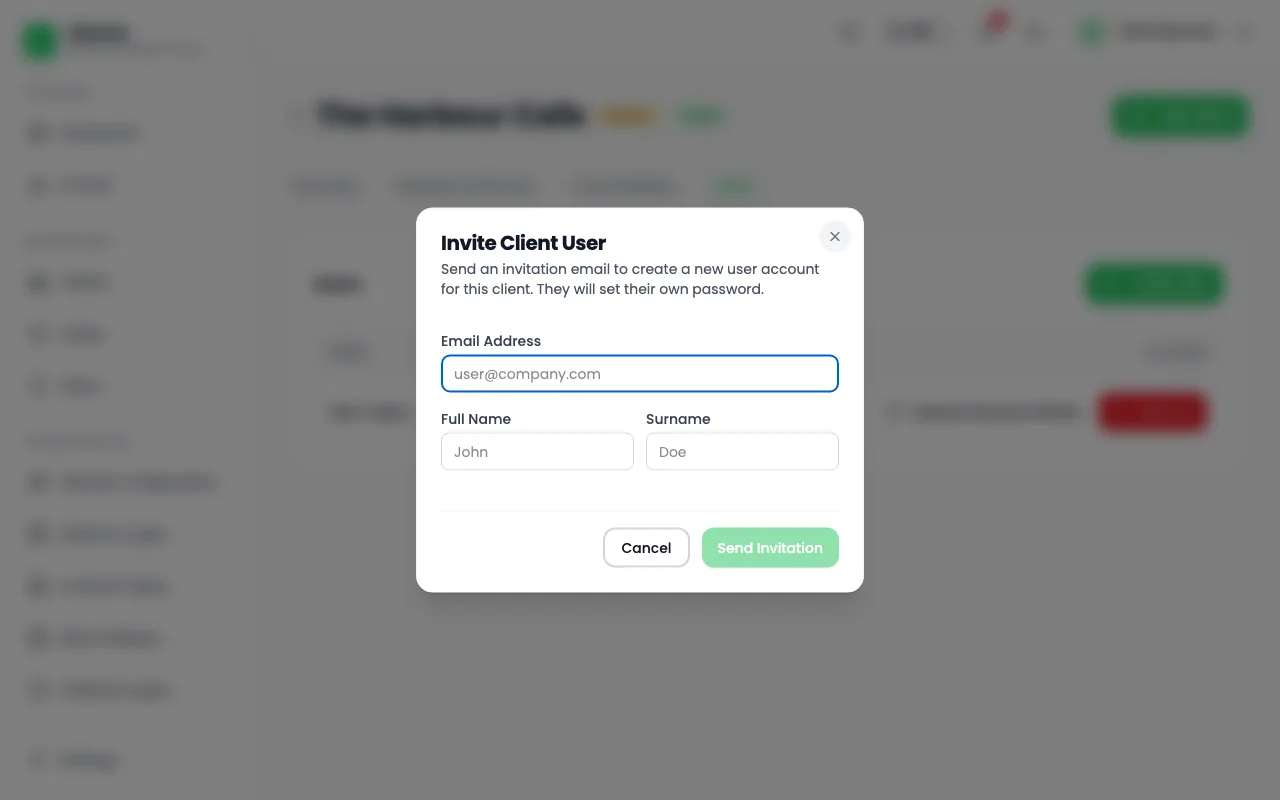
- Open the client and go to the Users tab.
- Select Invite User. The Invite Client User dialog opens.
- Enter Full Name (the first name), Surname and Email Address, then select Send Invitation.
- The business owner gets an email and sets a password.
- If the email got lost, use Resend Password Reset on the user's row.
Switch modules for a client
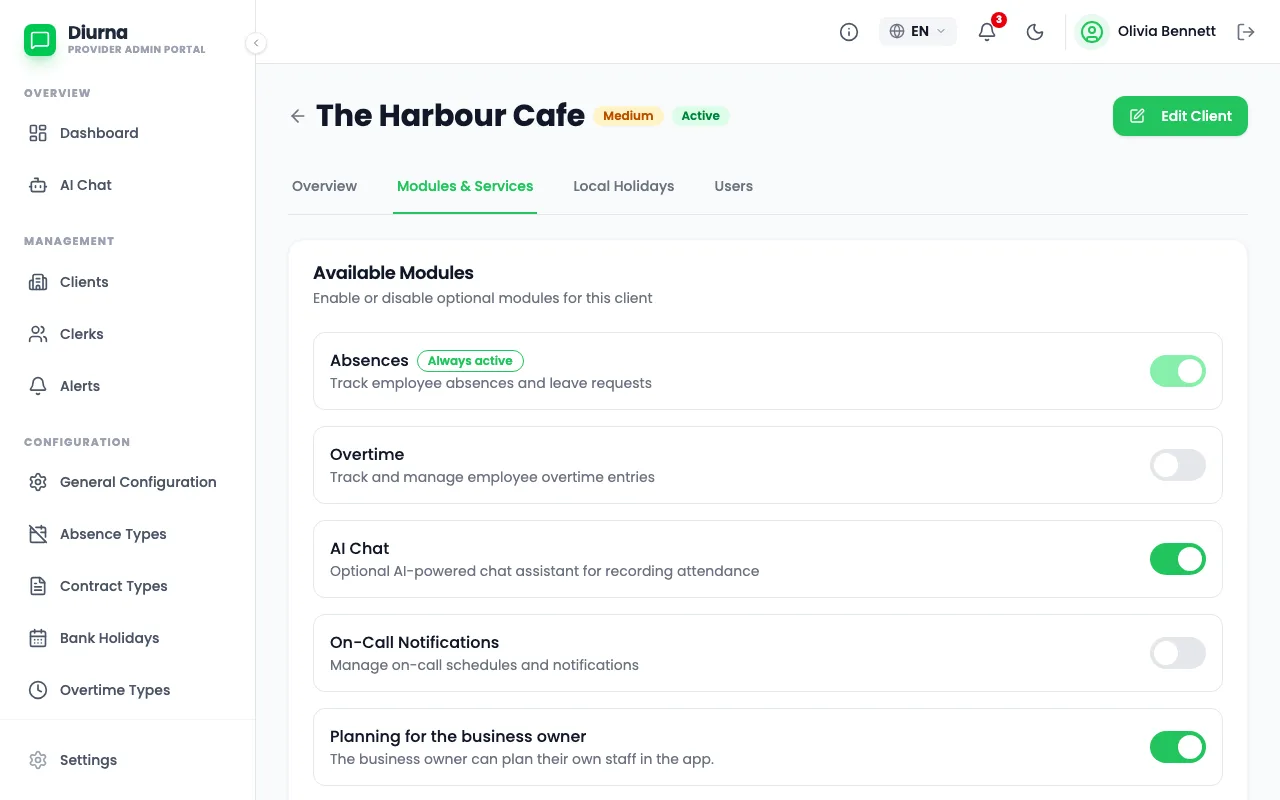
- Open the client and go to the Modules & Services tab, under Available Modules.
- Absences is always on.
- Switch Overtime, AI Chat, On-Call Notifications and Planning for the business owner on or off.
- Select Save Changes.
A new client starts with AI Chat on, planning on, overtime off and on-call off.
The other tabs are Overview, Local Holidays and Seasons.
Invite clerks
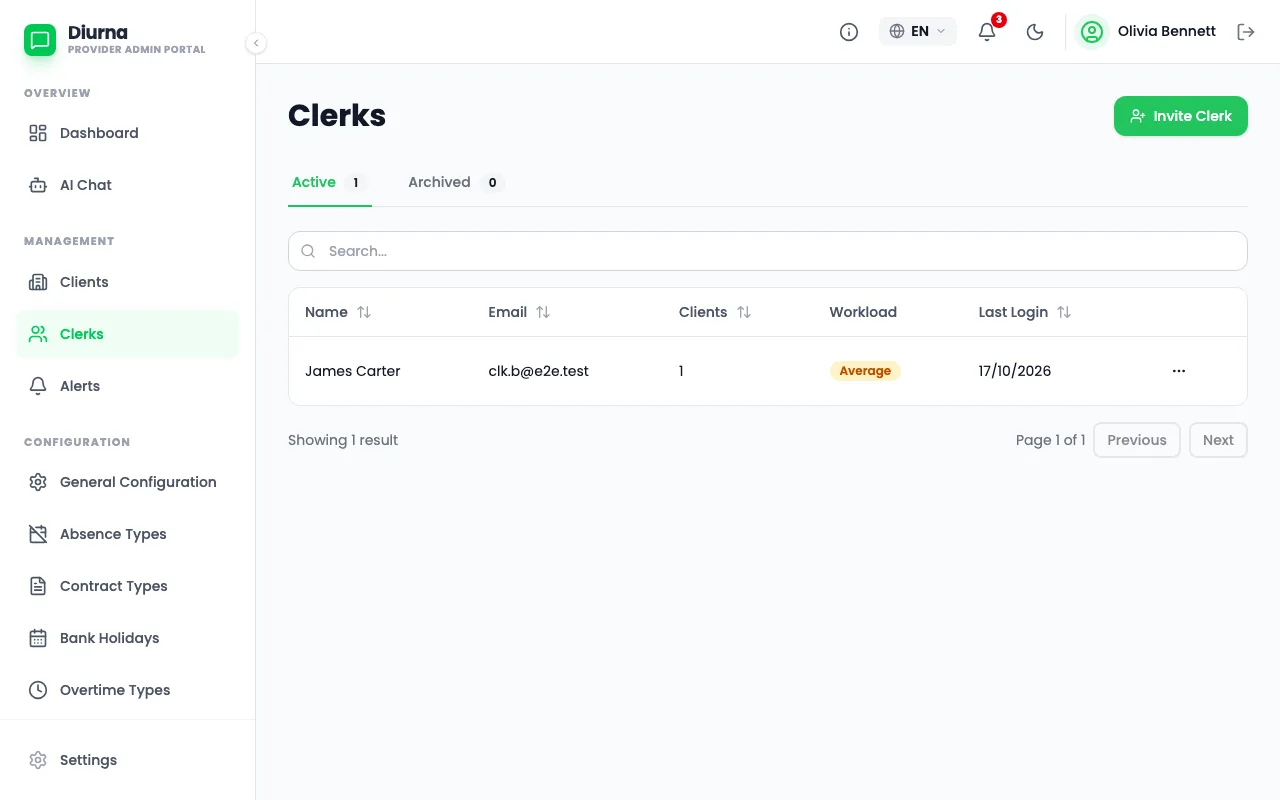
- Open Clerks and select Invite Clerk.
- Enter the name and email, then select Send Invitation.
- The clerk gets an email and sets a password.
Assign clients to a clerk
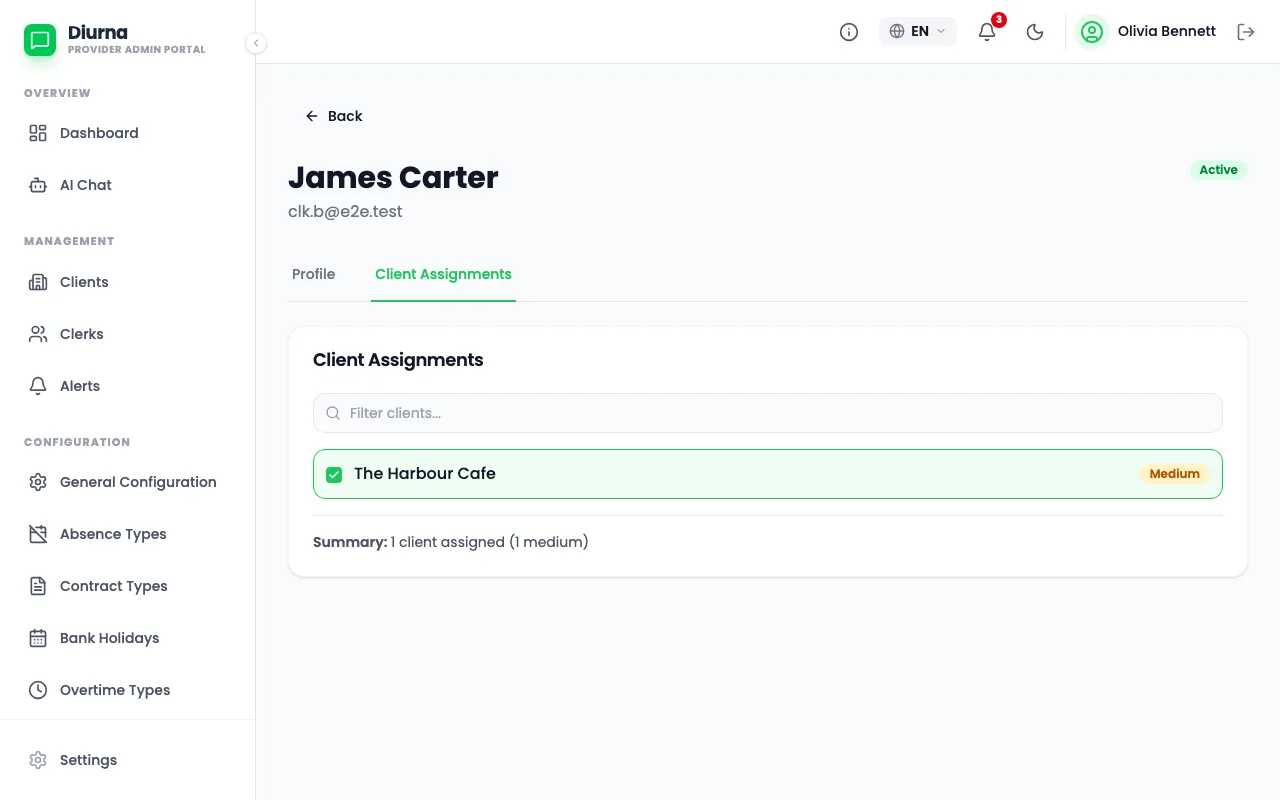
- Open Clerks and open the clerk.
- Under Available Clients, select the clients and choose Assign.
- They move to Assigned Clients. Use Unassign to take one back.
A client has exactly one clerk, and a clerk can have many clients. A client already taken shows Assigned to followed by the clerk's name. Archived clerks must be restored before you can assign clients.
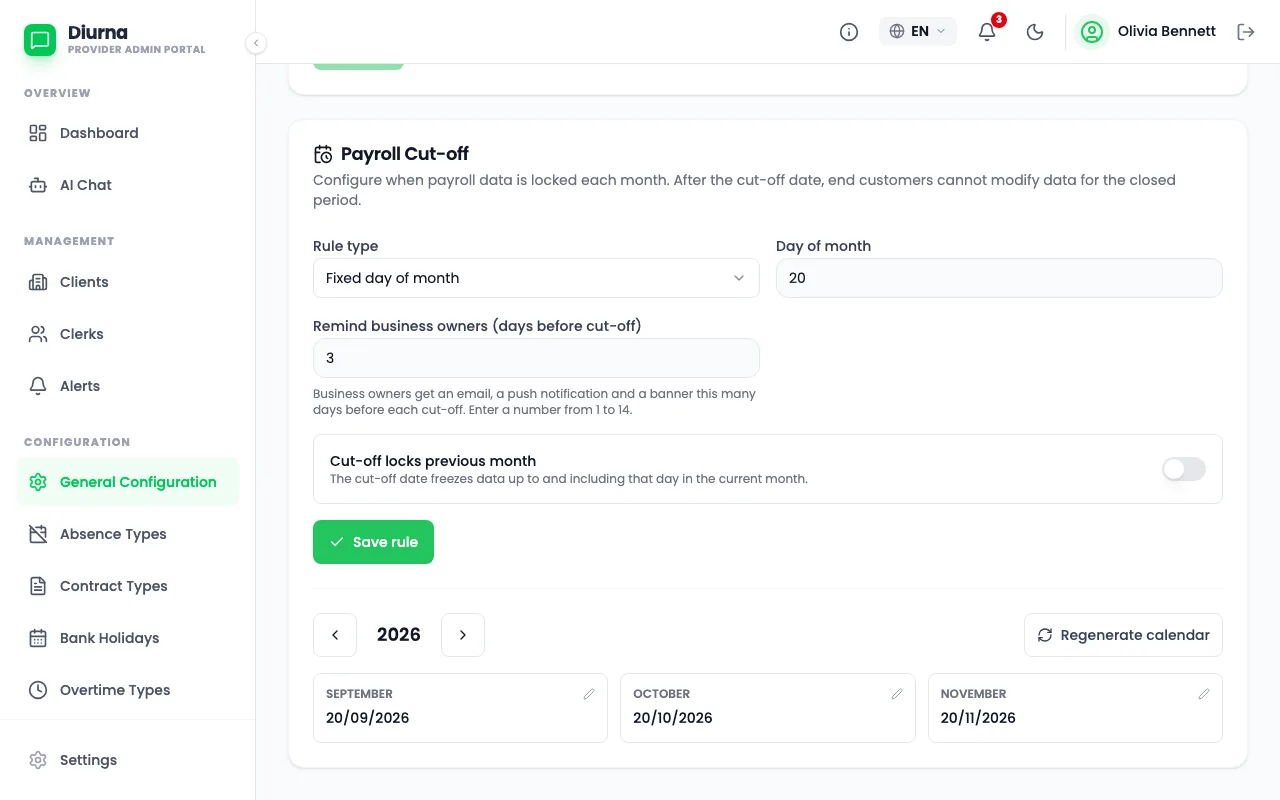
Set the payroll cut-off
- Open General Configuration and find Payroll Cut-off.
- Under Rule type, choose Fixed day of month or Last weekday of month.
- If you want the cut-off to lock the previous month, switch on Cut-off locks previous month.
- Select Save rule, then Generate calendar.
One client can have its own cut-off: edit the client. On the same page you also set Date Format, Default Time Interval (from 1 minute to 1 hour) and the pay code for regular hours (Pay code: Regular Hours).
Set the business owner reminder days
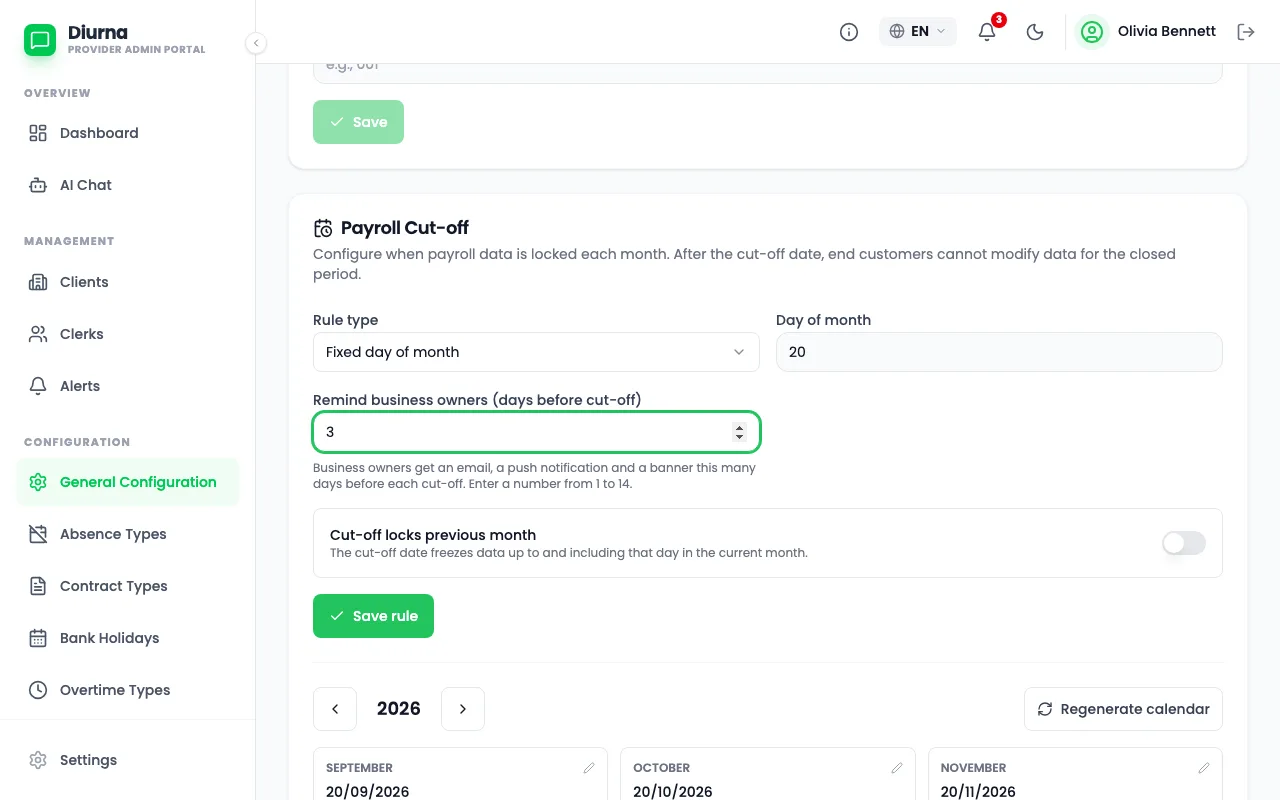
- Open General Configuration and find the reminder setting under the payroll cut-off.
- Enter how many days before the cut-off the business owner is reminded.
- The default is 3. You can choose from 1 to 14.
- Select Save rule.
The owner then gets an email, a banner in the app and, in the phone app, a push message.
Keep the master data
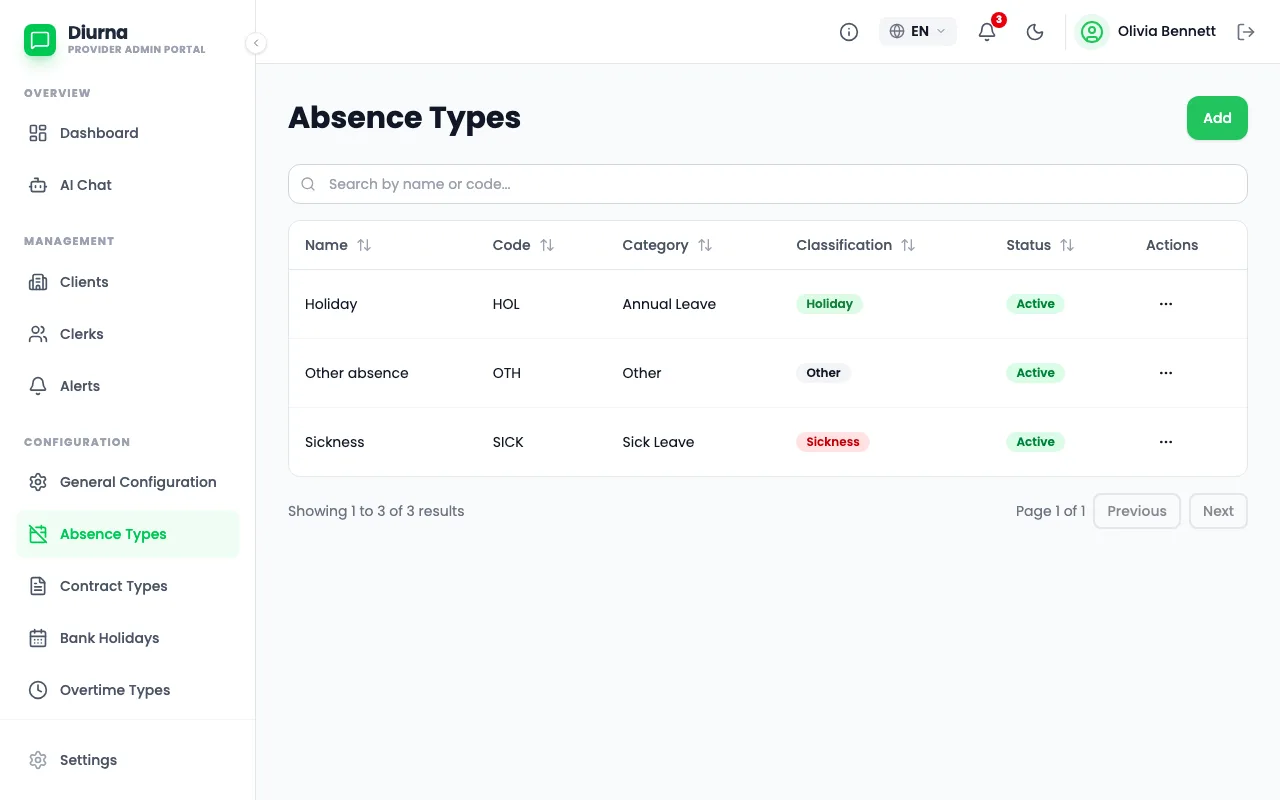
- Open Absence Types for the types of absence. Three defaults are ready: Holiday, Sickness and Other absence. The default overtime type is Overtime.
- Open Contract Types and Overtime Types to adjust them.
- Open Bank Holidays and add your country's holidays.
Diurna does not preload national holidays for the generic profile, so you add your own.
Reopen a closed month
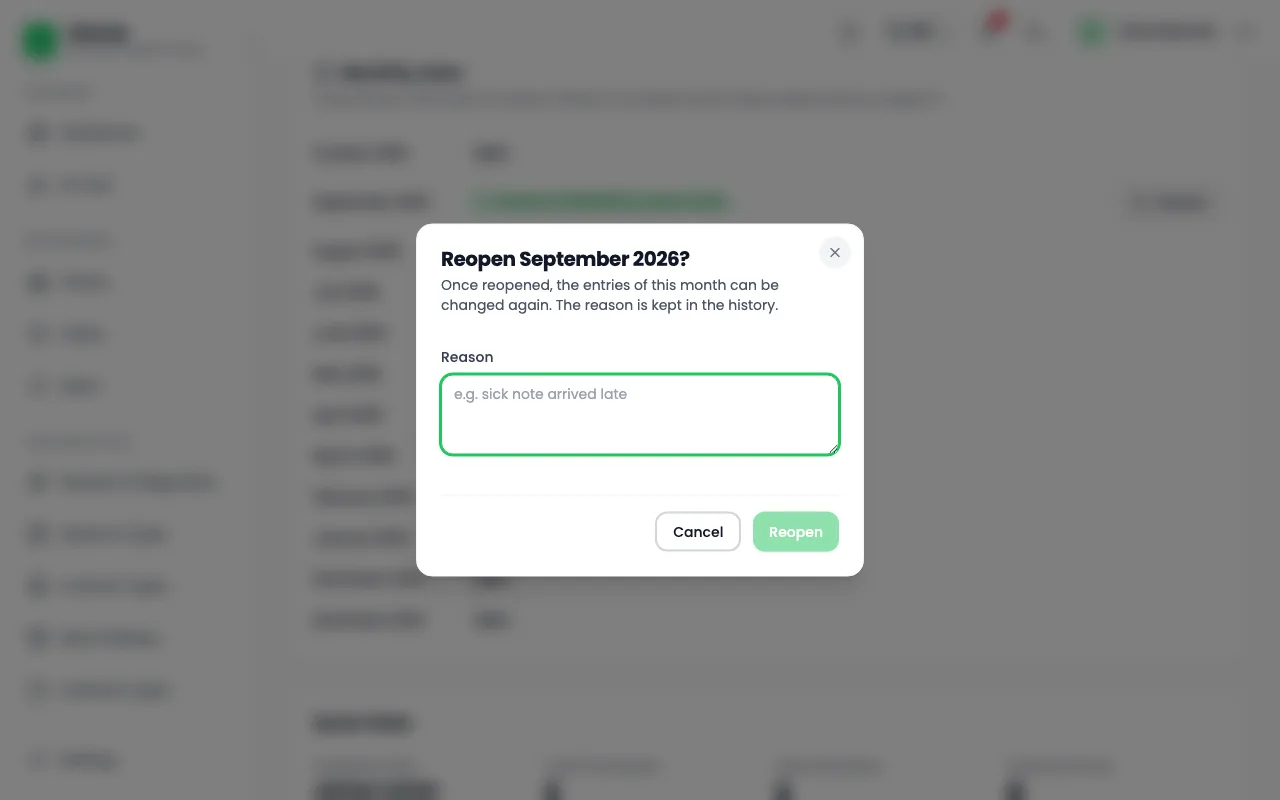
- Open the client. On the Overview tab, find the Monthly close card.
- Pick the closed month and select Reopen.
- Enter a reason under Reason.
- The clerk corrects the entries and closes the month again.
Only the firm admin can reopen a month. The reason is saved in the history.
Part 2: For clerks
This part is for you if you work on client businesses for the firm. You see only the clients assigned to you.
Pick the client
- Use the client picker at the top of the menu: Select Client.
- Choose the client business.
- Everything below now shows that client.
With a single client, its name stands directly in the menu and there is nothing to pick.
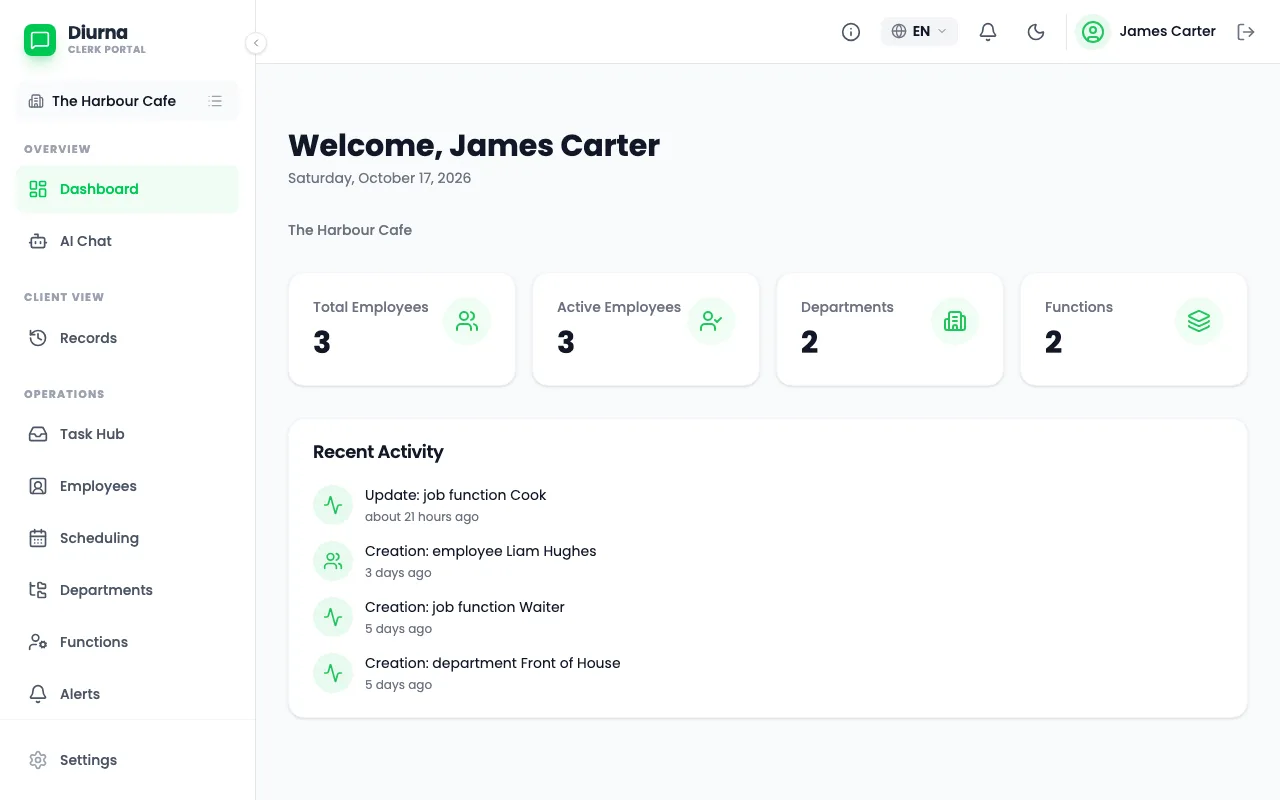
Add an employee
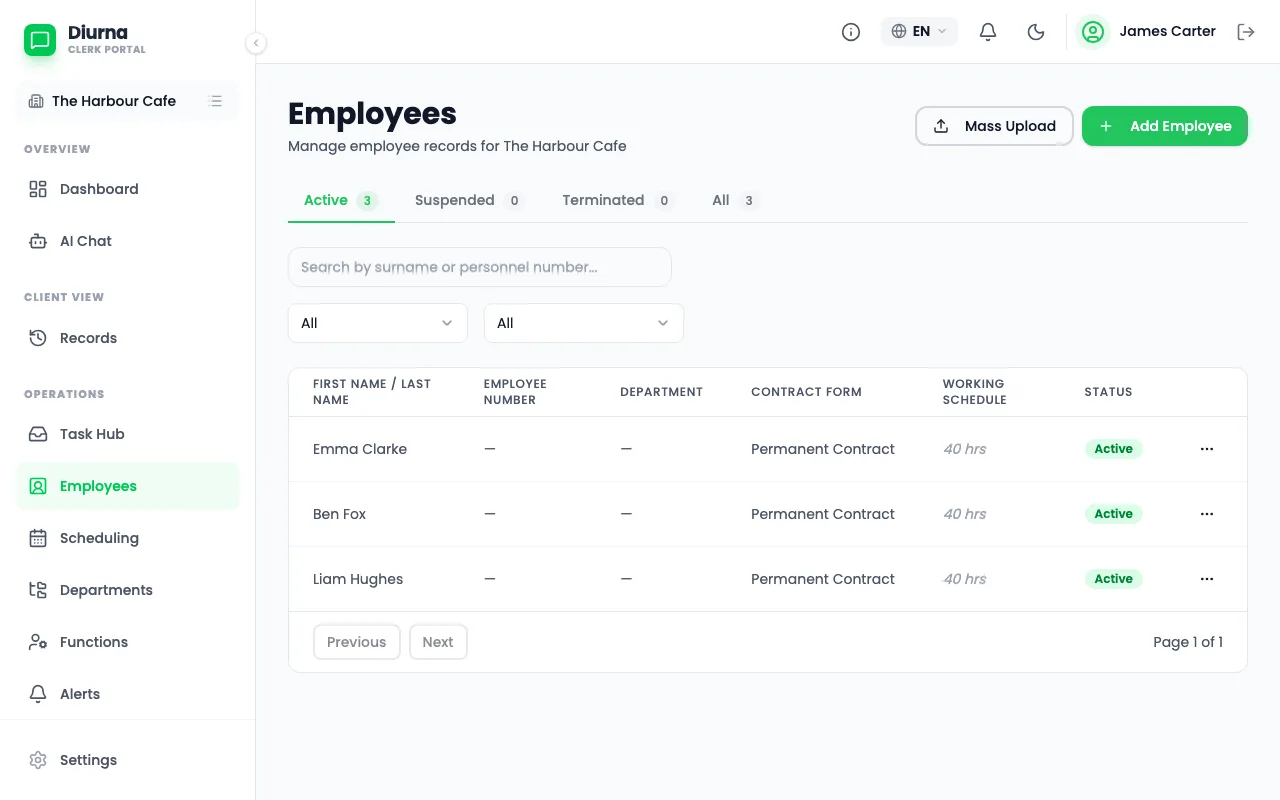
- Open Employees and select Add Employee.
- In Personal & Contract Info, enter the personal data, including Date of Birth.
- In Contract Details & Assignment, enter Contract Type, the contract dates and Weekly Hours.
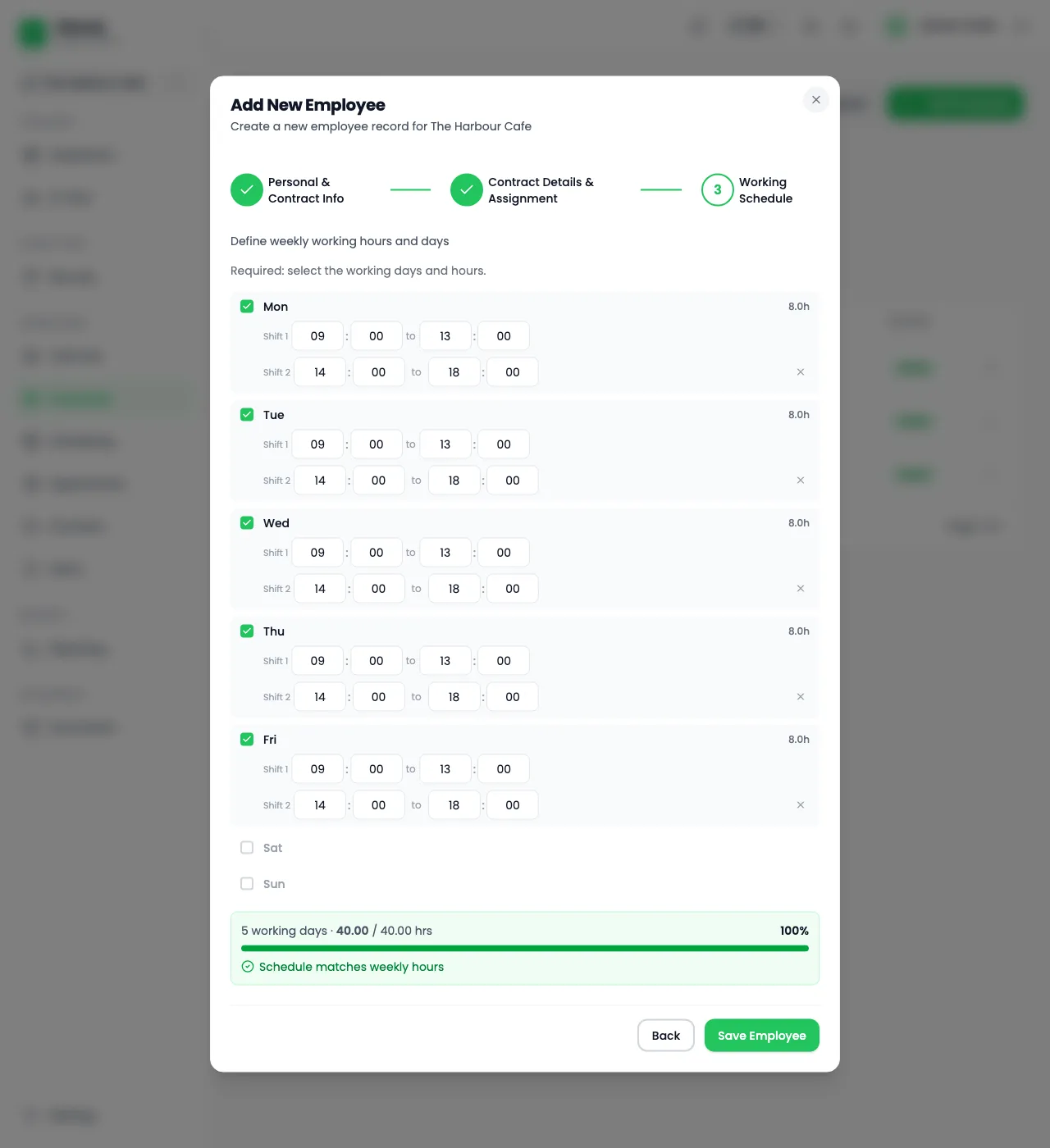
- In Working Schedule, enter the weekly schedule.
- Save the employee.
The weekly schedule is the employee's planned working time. Keep the date of birth correct, because the app uses it for the checks.
Add many employees at once
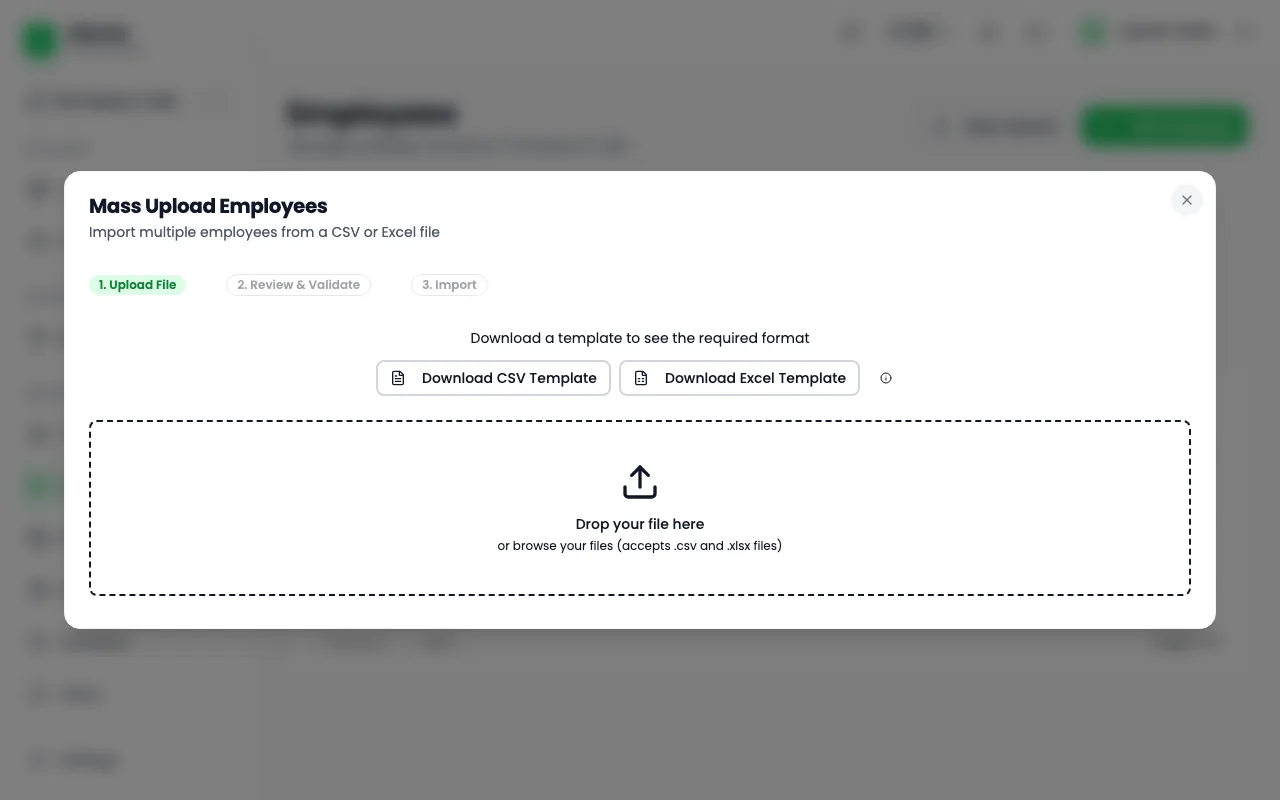
- Open Employees and choose mass upload.
- Select Download CSV Template or Download Excel Template. Filling Instructions explains each column.
- Fill it in and save it as .csv (UTF-8) or .xlsx.
- Drop the file in the box, then select Parse & Validate.
- Check the preview, then select the import button.
Plan
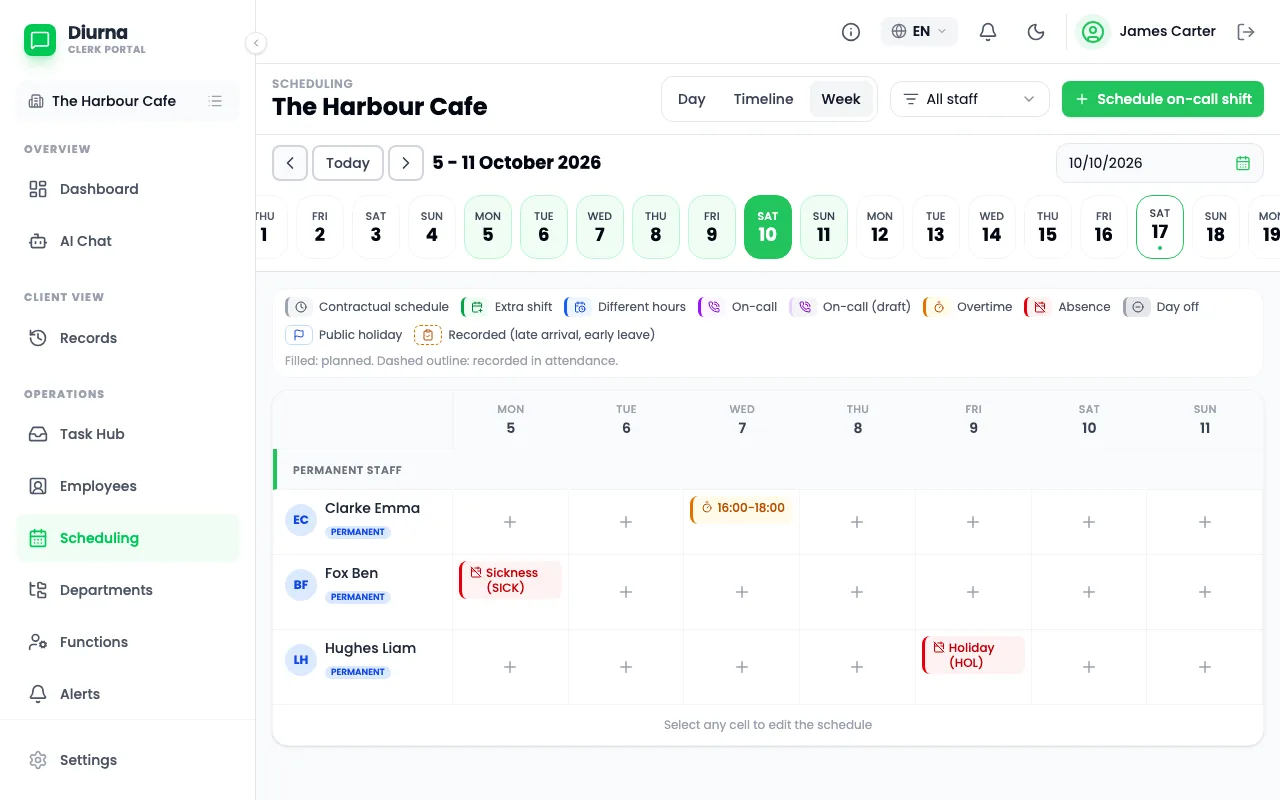
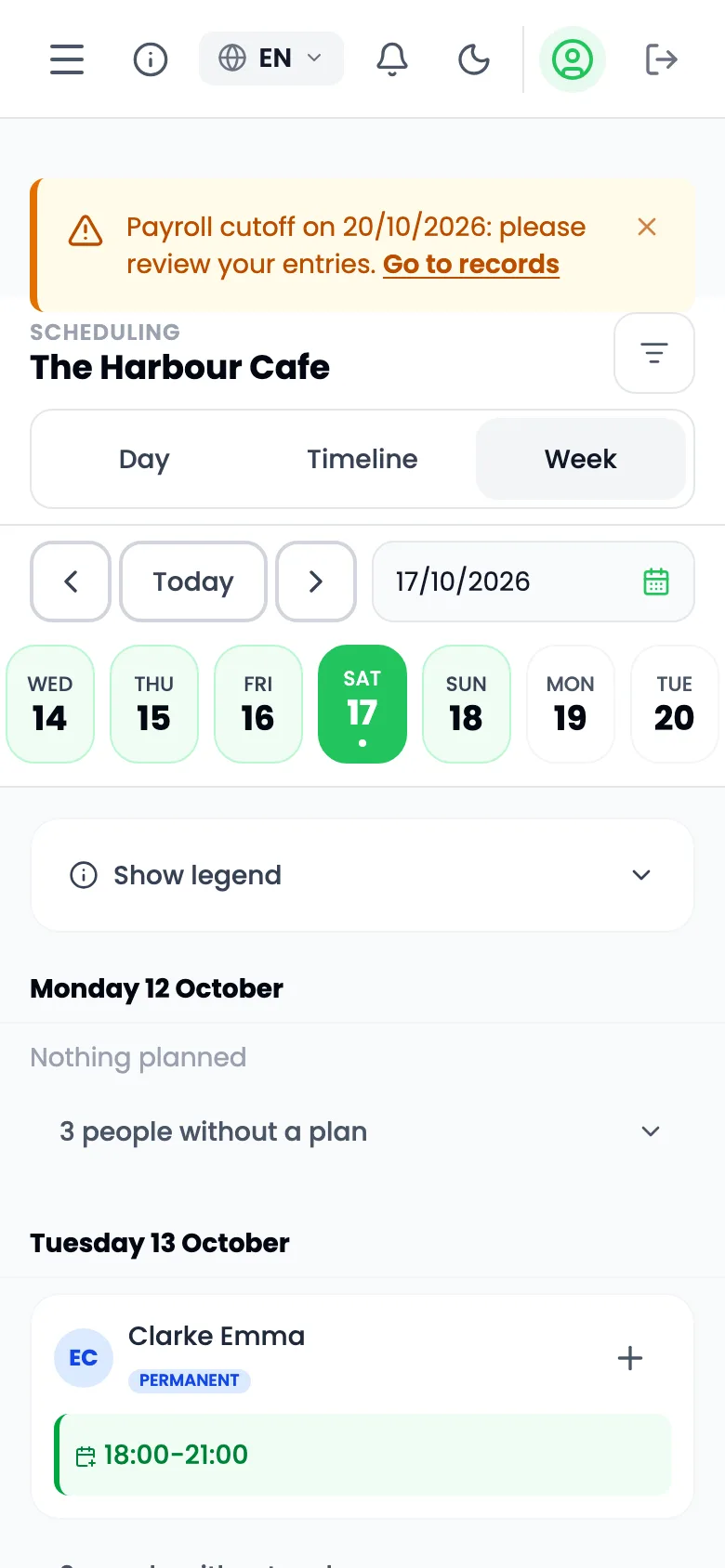
- Open Scheduling.
- Choose a view: Day, Timeline or Week.
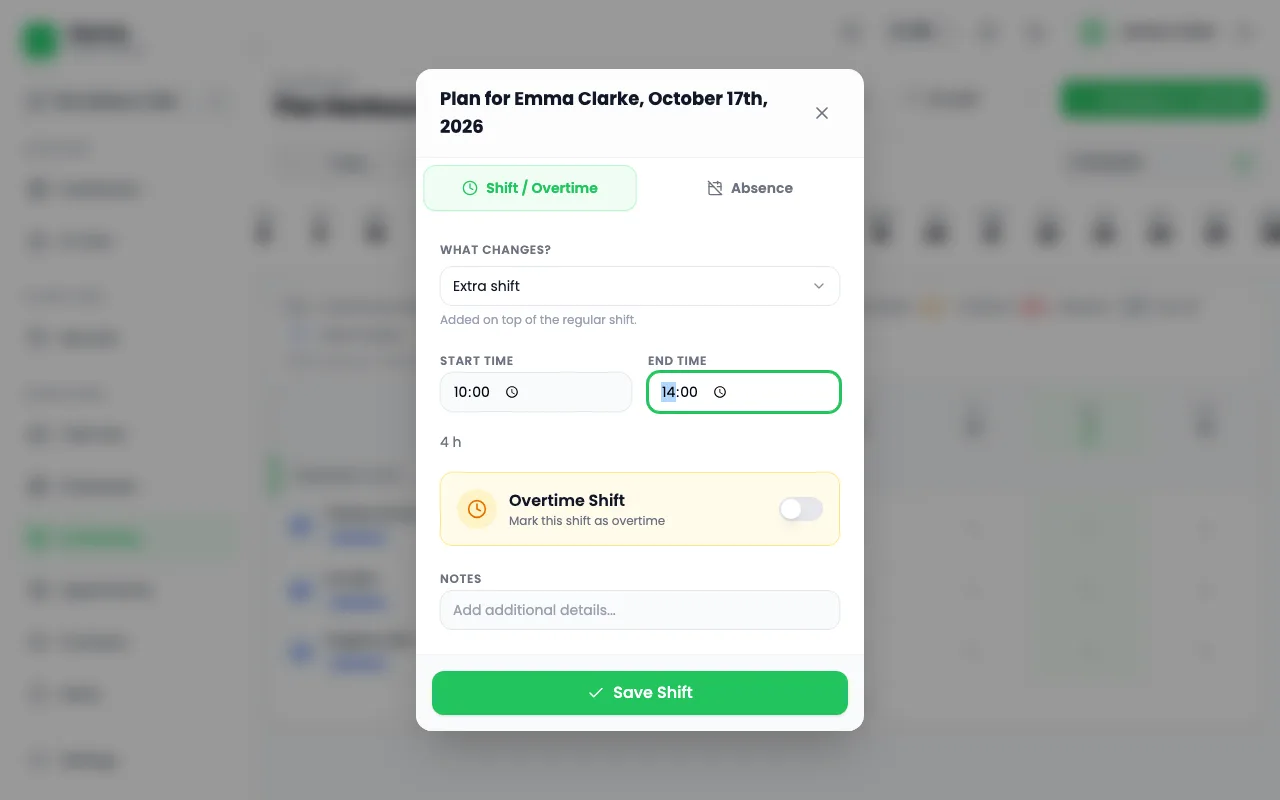
- Select a cell and choose the entry type: Extra shift, Different hours, Absence or Day off.
- For on-call work, use Add on-call shift.
- Select Save Shift, Save Absence or Save On-Call.
You can always plan, whatever the module switch says for the client.
Understand the rule checks
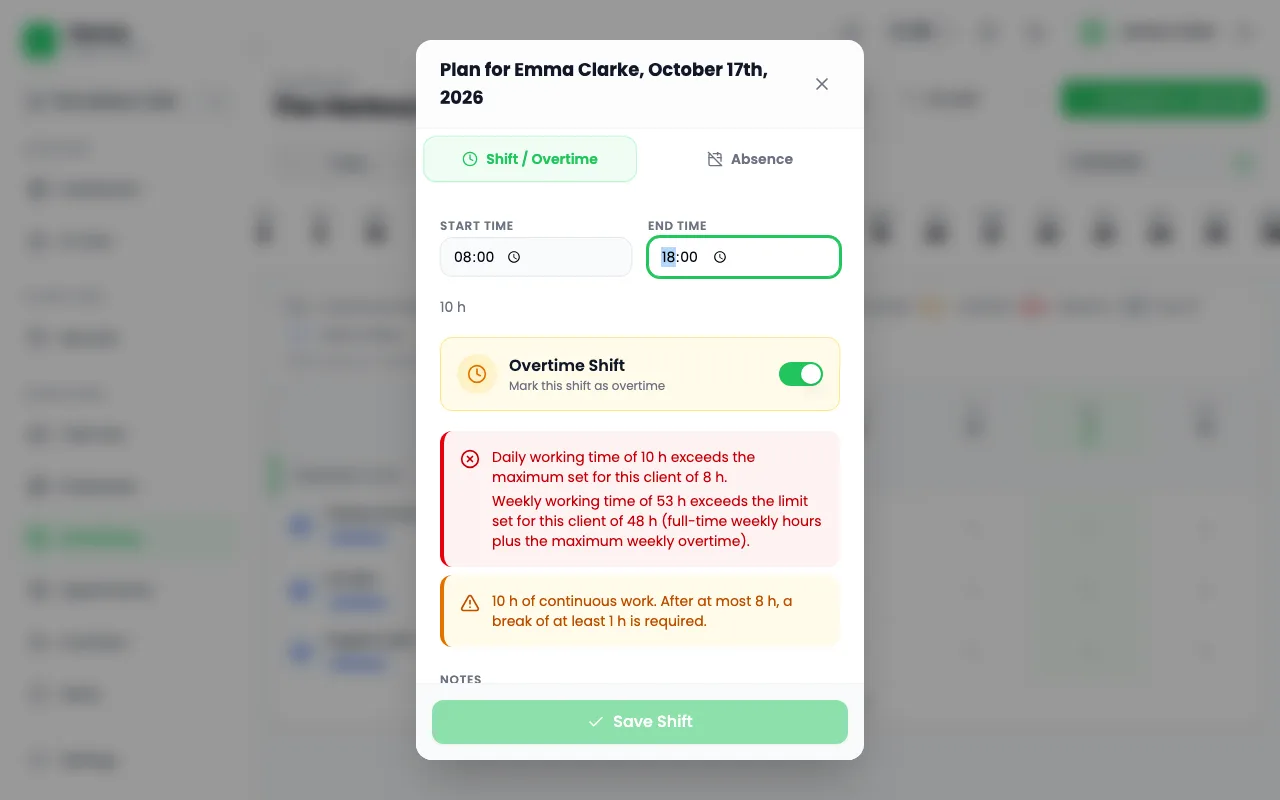
- Every entry is checked at once against the limits set for the client.
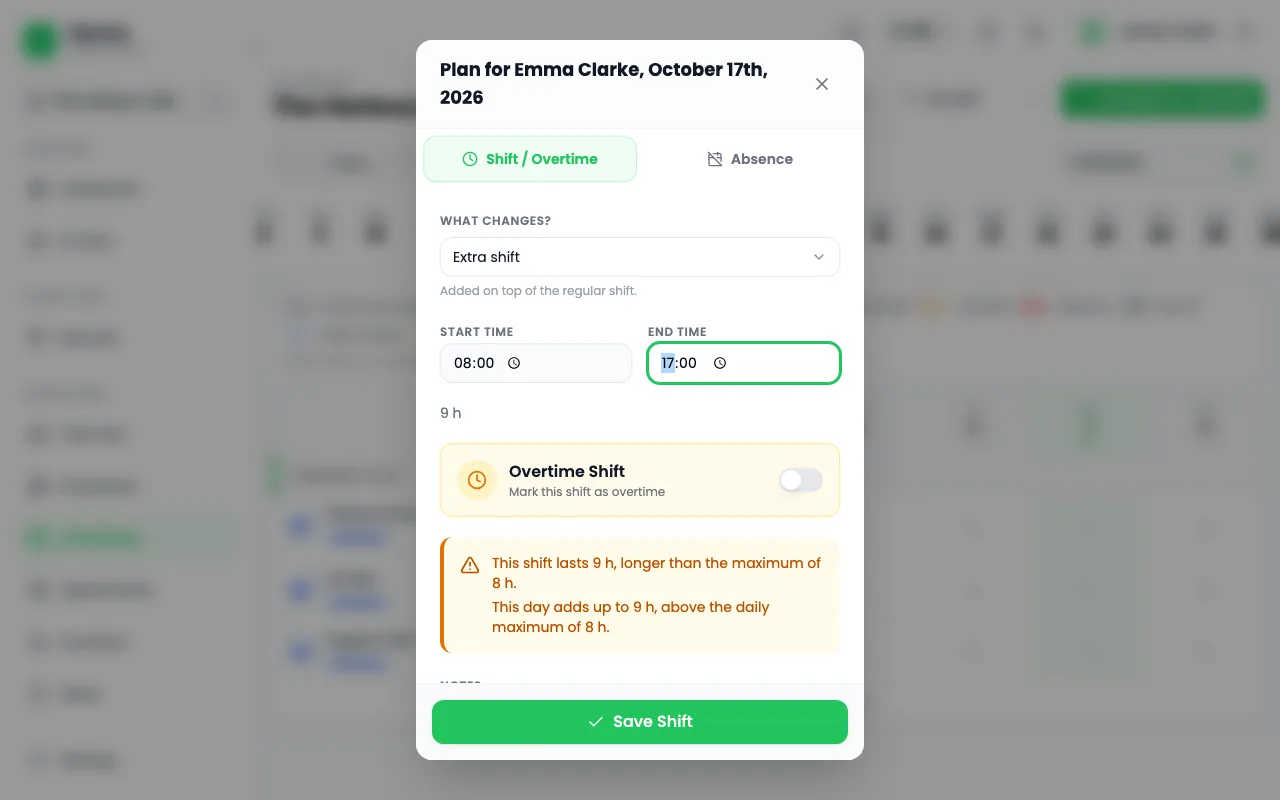
- With the generic profile these are the firm's own limits, such as the maximum hours per day and per shift. A message reads, for example, that a day's total exceeds the daily maximum.
- A rule break shows either a red error, Cannot Save, which blocks saving, or an amber warning.
- Change the times to clear an error. With a warning you can still save if there is a reason.
Check and correct entries
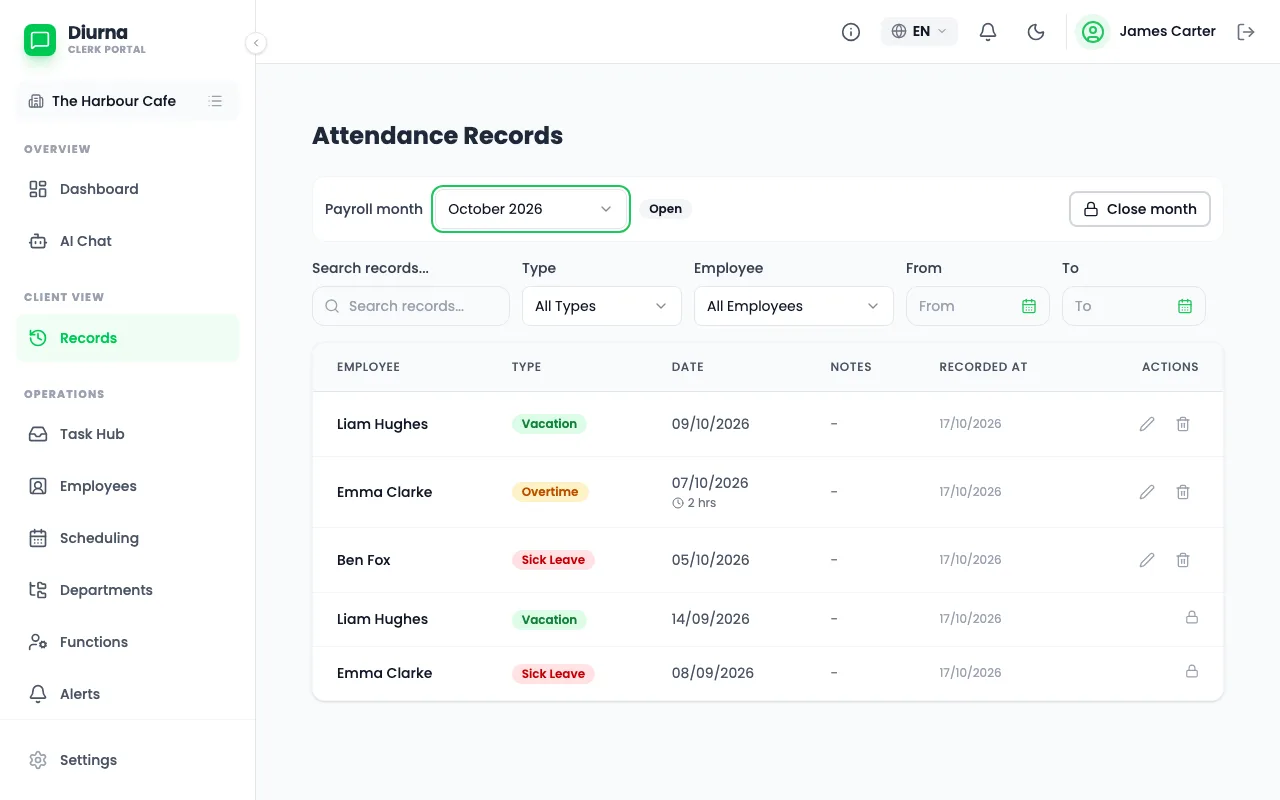
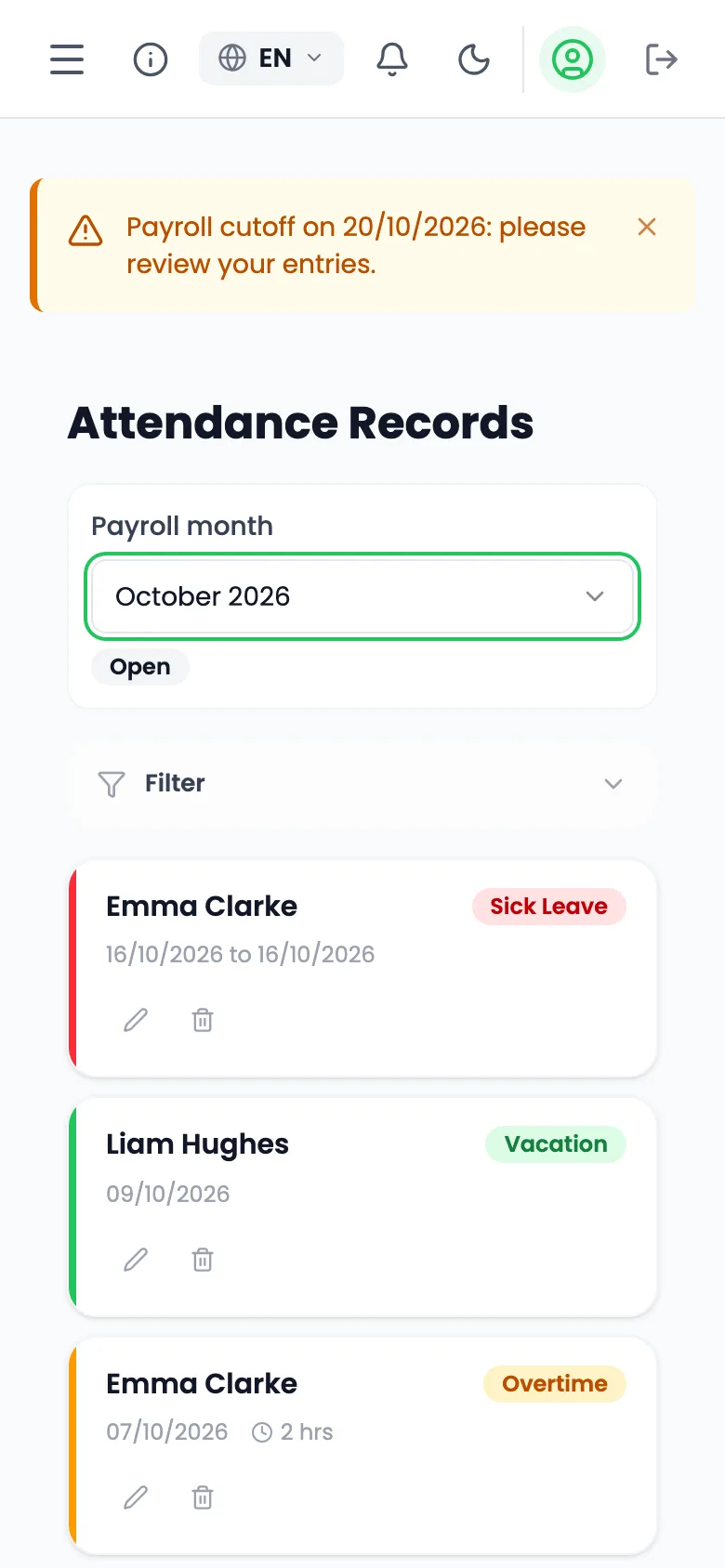
- Open Records, titled Attendance Records.
- Filter by type or employee, or search, and use Clear filters to start again.
- Edit an entry with Edit Record or remove it with Delete Record.
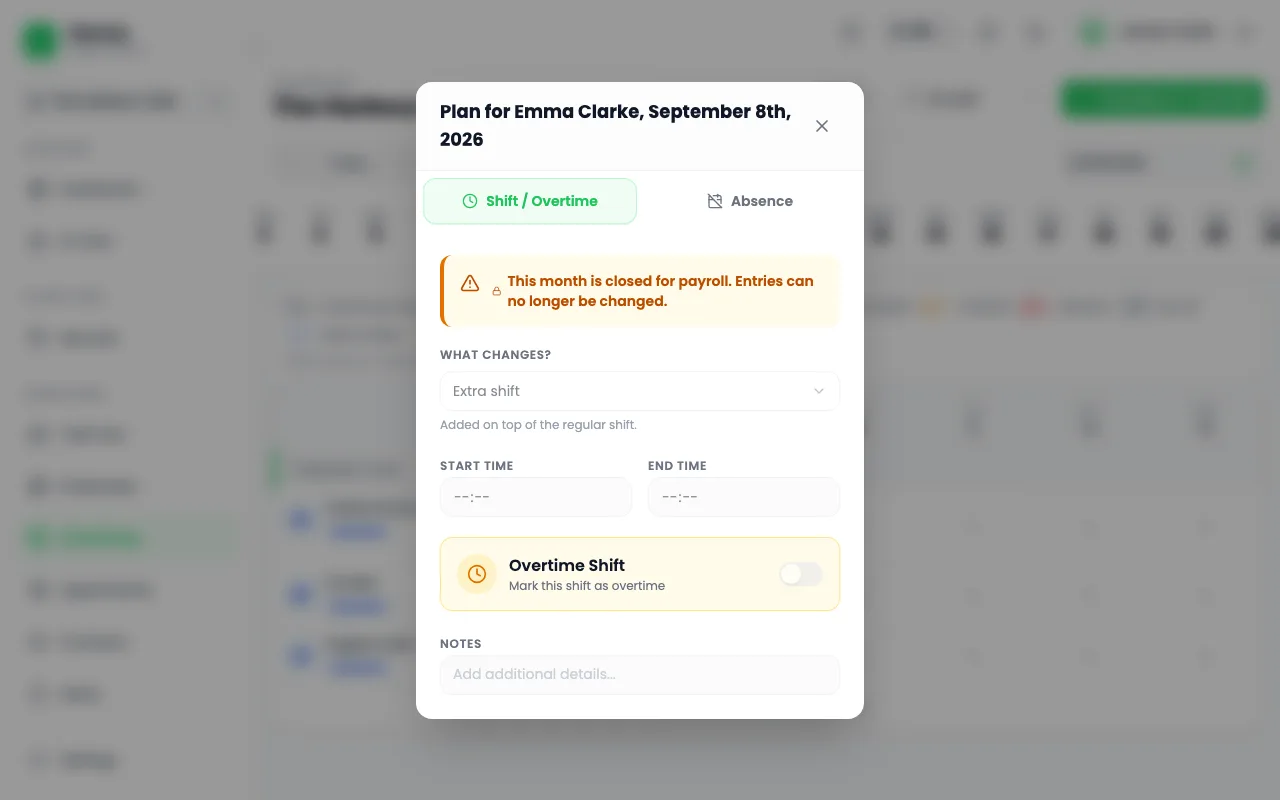
Entries in a locked period show a lock and cannot be changed.
Close the month
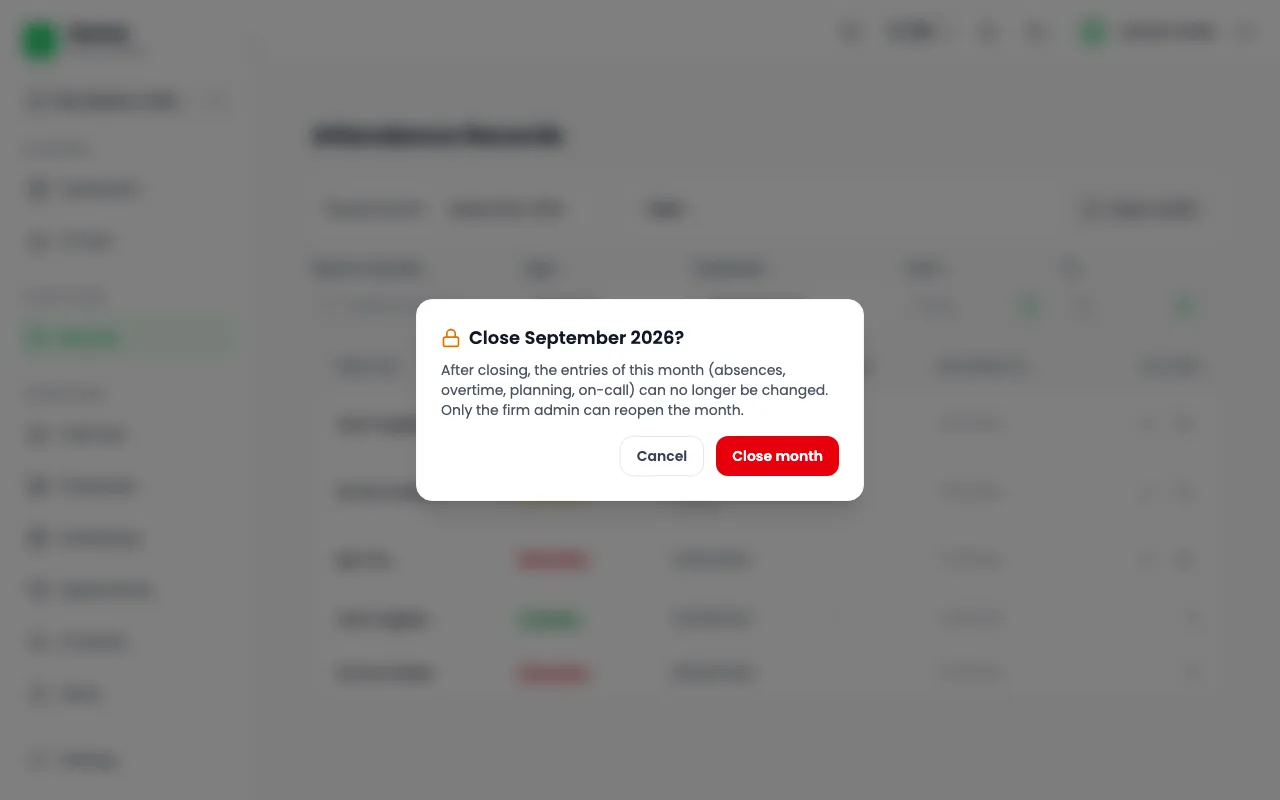
- Open Records and pick the client and the month.
- Select Close month.
- Confirm in the dialog.
The month then locks for everyone, including the business owner. The chat refuses entries for that month with a clear message. Only the firm admin can reopen it, and only with a reason.
Export reports
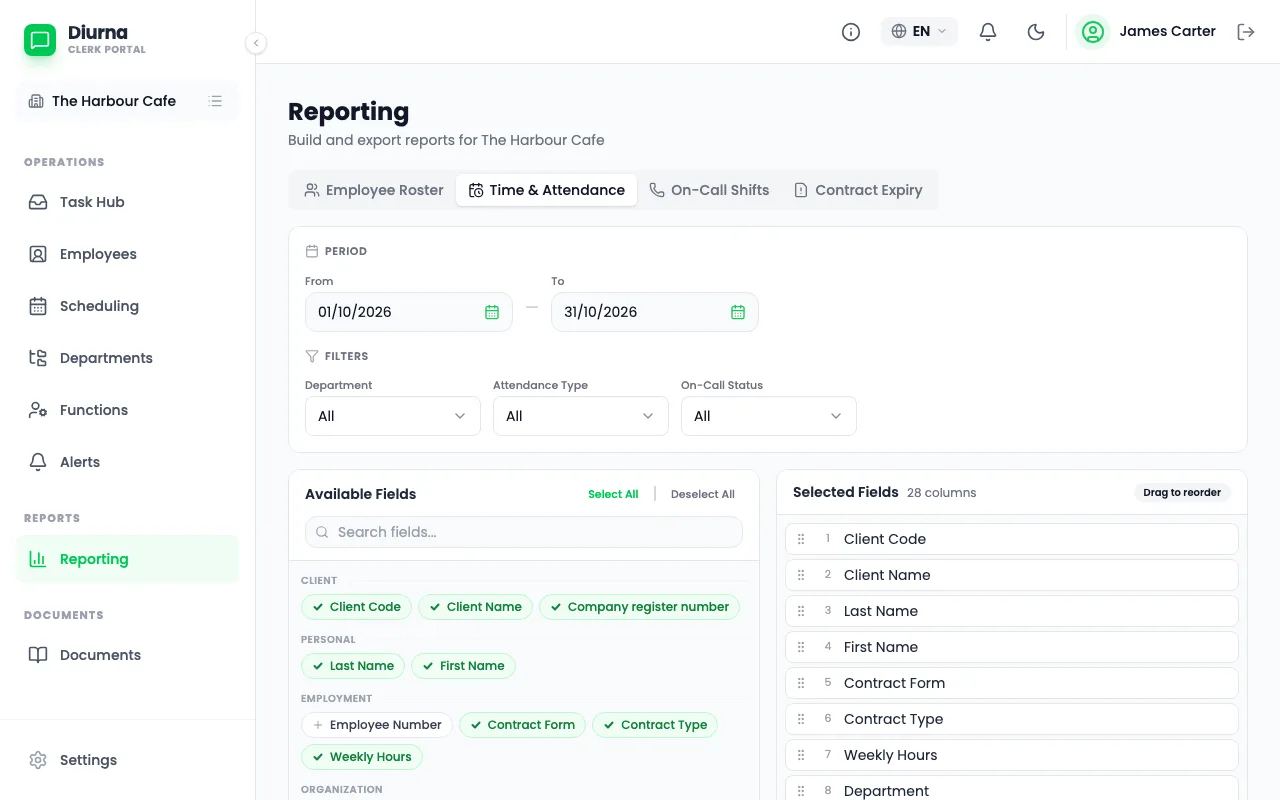
- Open Reporting.
- Choose a tab: Time & Attendance, Employee Roster, On-Call Shifts or Contract Expiry.
- Choose the period and the Format: CSV or Excel (XLSX).
- Export the file.
Use Save Template to keep a layout, and Load Template to use it again. My Templates and Shared Templates list them.
Hand over to payroll
- Close the month first.
- In Reporting, open Time & Attendance.
- Export it as CSV or Excel (XLSX).
- Import it into your payroll software, or type the hours in.
The payroll handover is the time and attendance export, and it works with any payroll software.
Part 3: For business owners
This part is for you if you run a client business. You report only what differs from the plan. A normal day, as planned, needs no entry.
Report a sick day, holiday, overtime or other absence
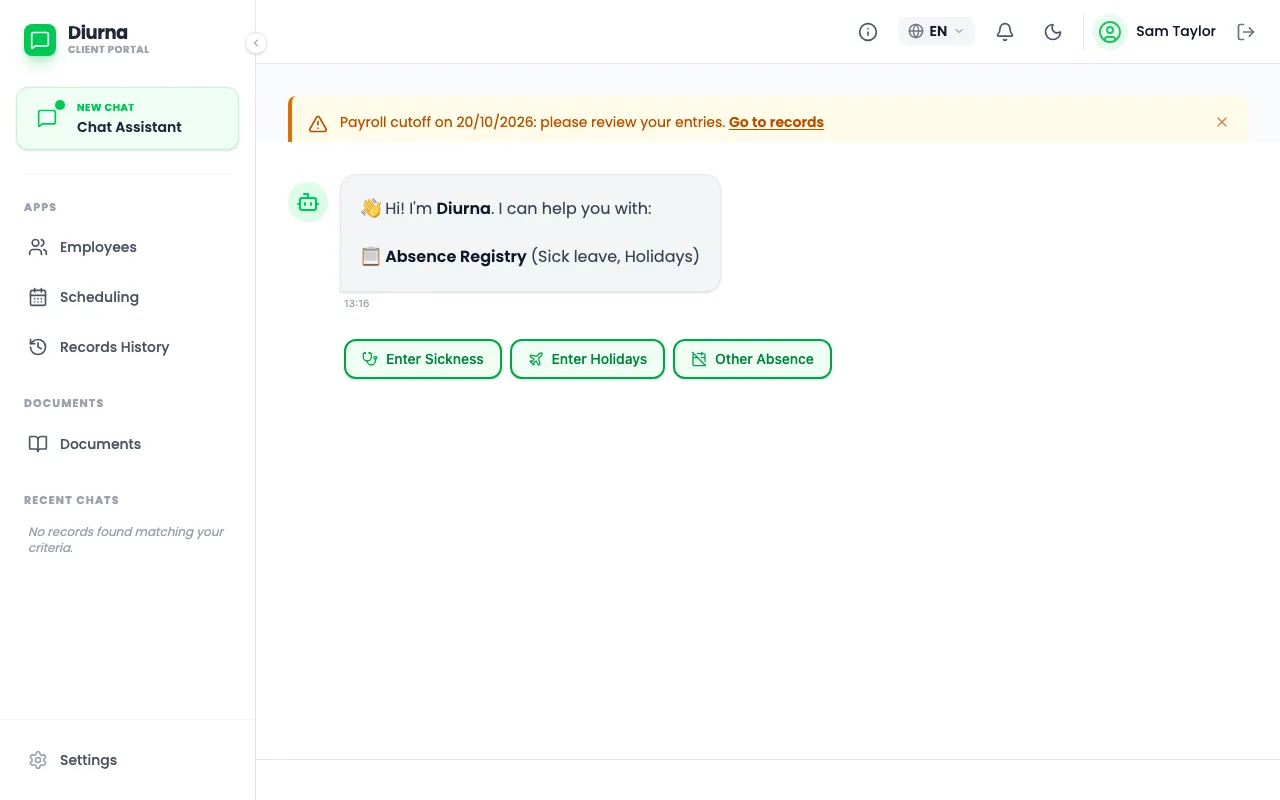
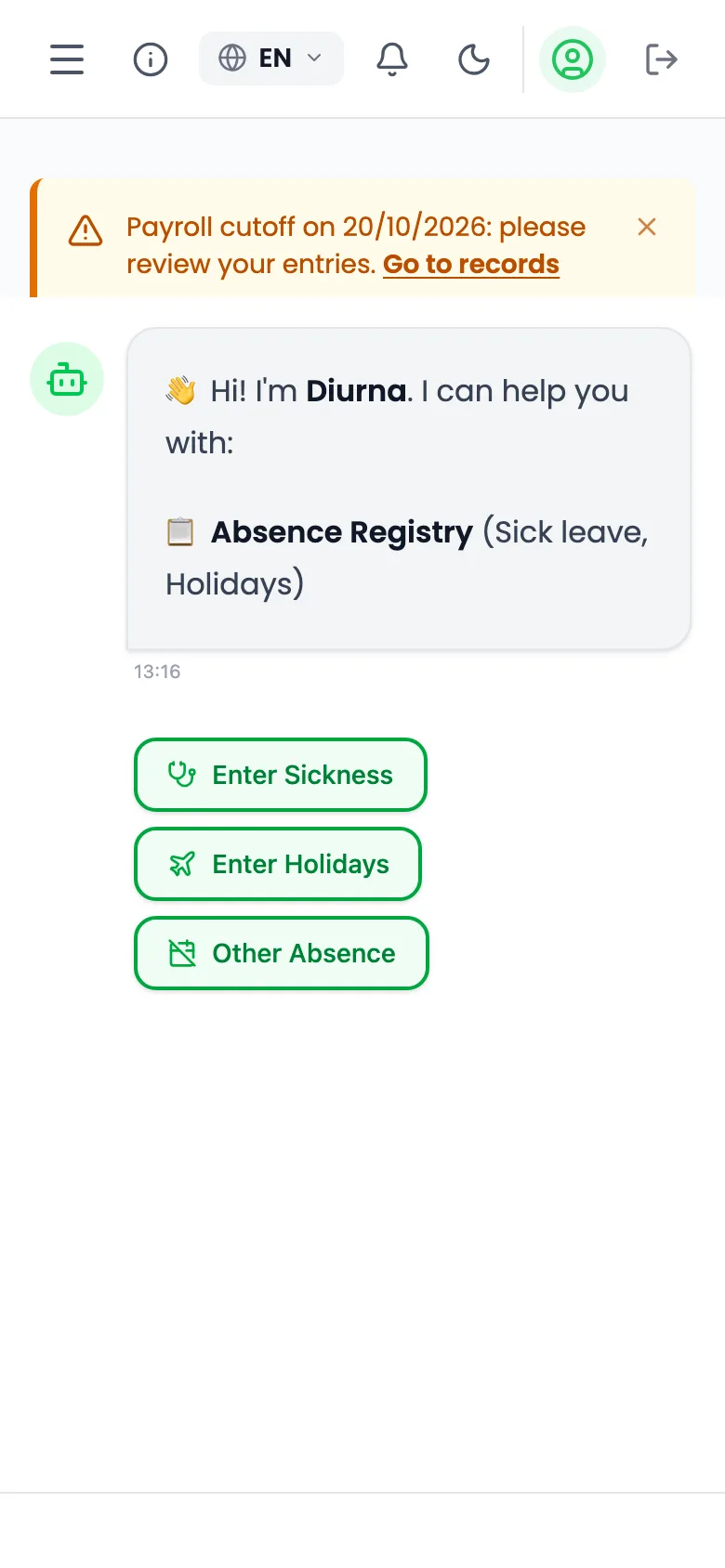
- Open the Chat Assistant. On the phone it is the first tab.
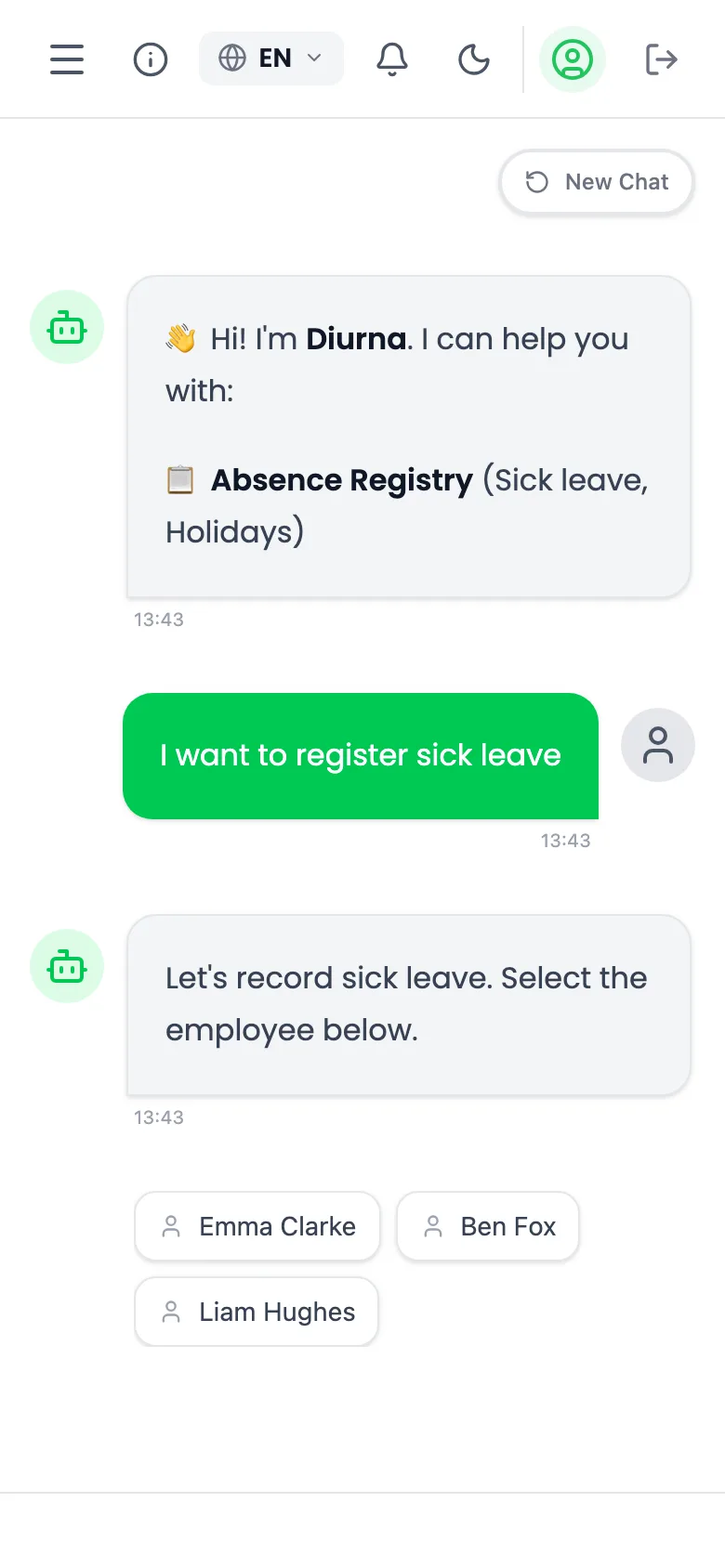
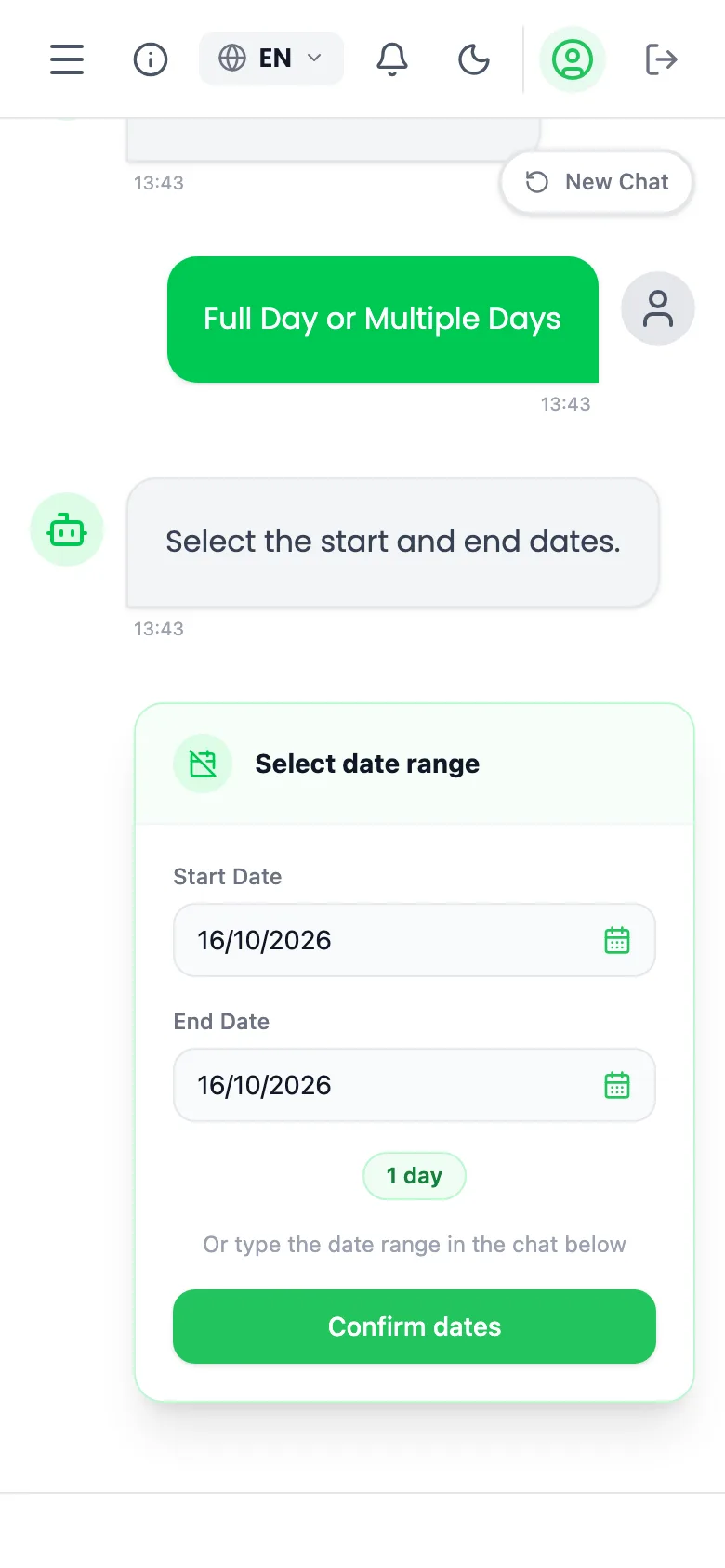
- Tap a button: Record Overtime, Enter Sick Leave, Enter Holidays, Other Absence or Plan / Cancel On-Call.
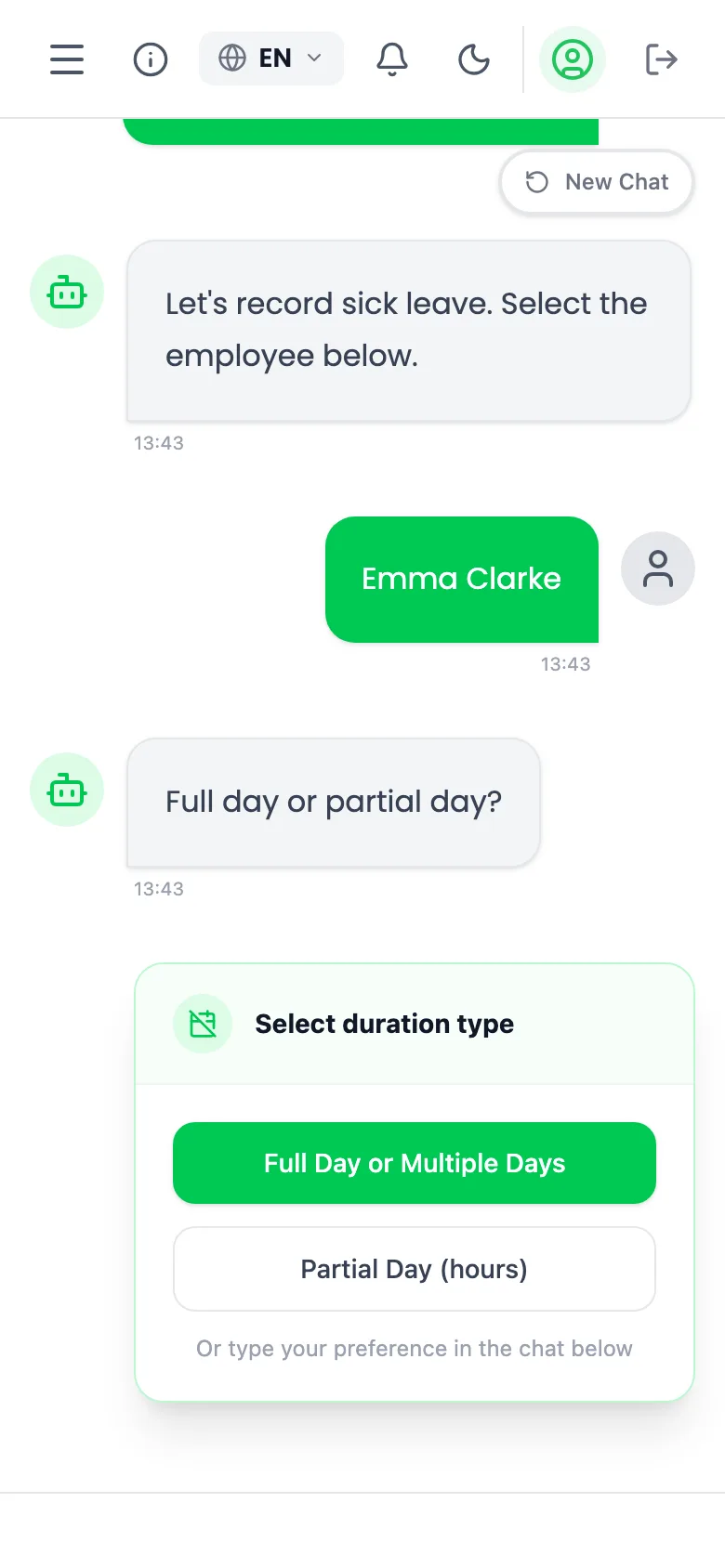
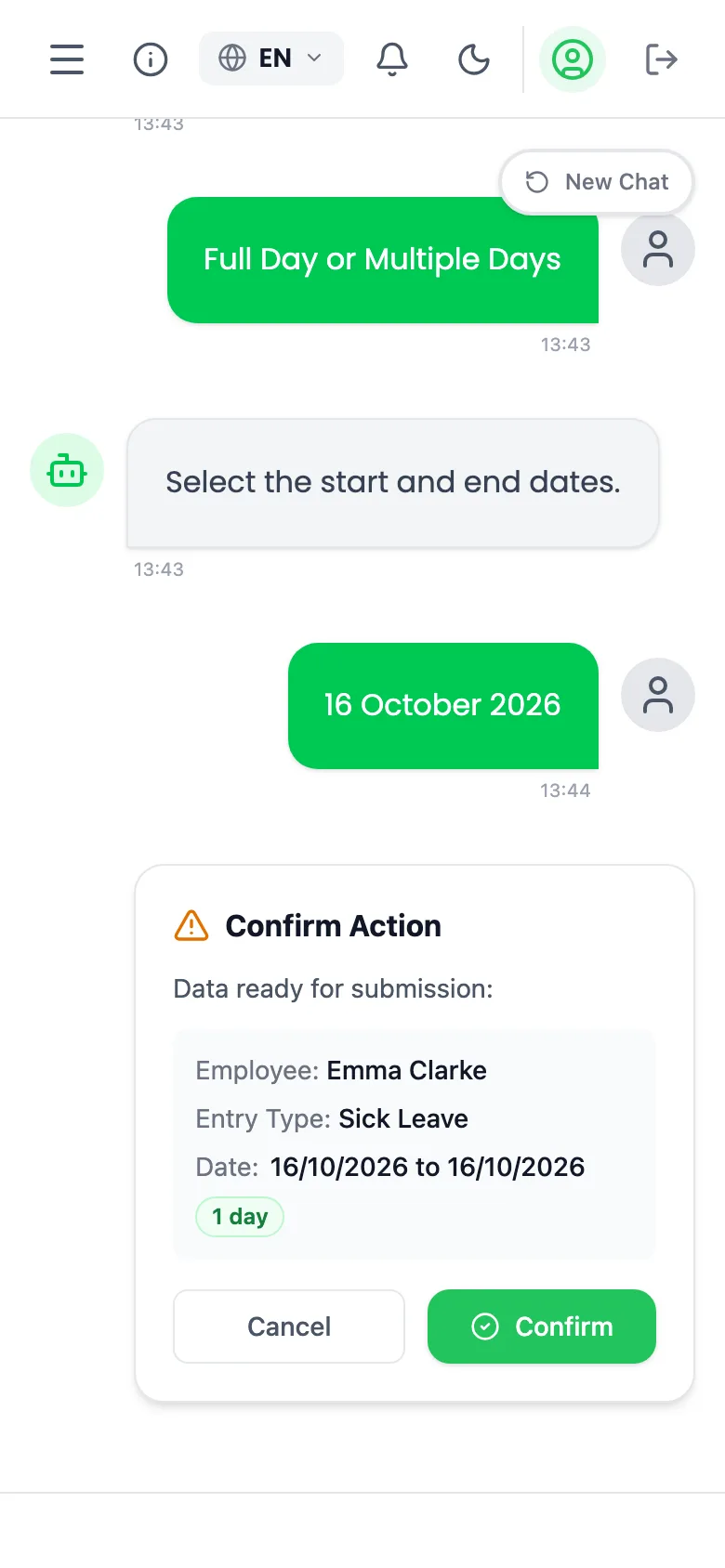
- Answer the questions: which employee, which day or days, and the times or duration.
- Check the summary the assistant shows.
- Select Confirm.
If the report breaks a rule, the chat refuses it with a red message, or shows a warning you can accept with the Proceed anyway button.
You can also speak instead of typing: tap Voice Input. The app asks you not to enter health information or other sensitive personal data. Give only the names and dates the assistant asks for.
Use free text
- If your firm switched on AI chat, you can also write a sentence, for example "Anna is sick today".
- The assistant asks for whatever is missing.
- Read the summary carefully, because the assistant can make mistakes.
- Confirm only when it is right.
Check and fix entries
- Open Records History. On the phone, open the Records tab.
- Find the entry.
- Edit or delete it.
You can do this until the month is closed or the payroll cut-off has passed. After that, ask your payroll firm.
Plan shifts
- If your firm switched planning on, open Scheduling. On the phone, open Planning.
- Plan the same way as a clerk: choose a cell and an entry type.
- Save the entry.
See your staff
- Open Employees.
- You can read the list but not change it.
- New employees are added by your payroll firm.
The reminder
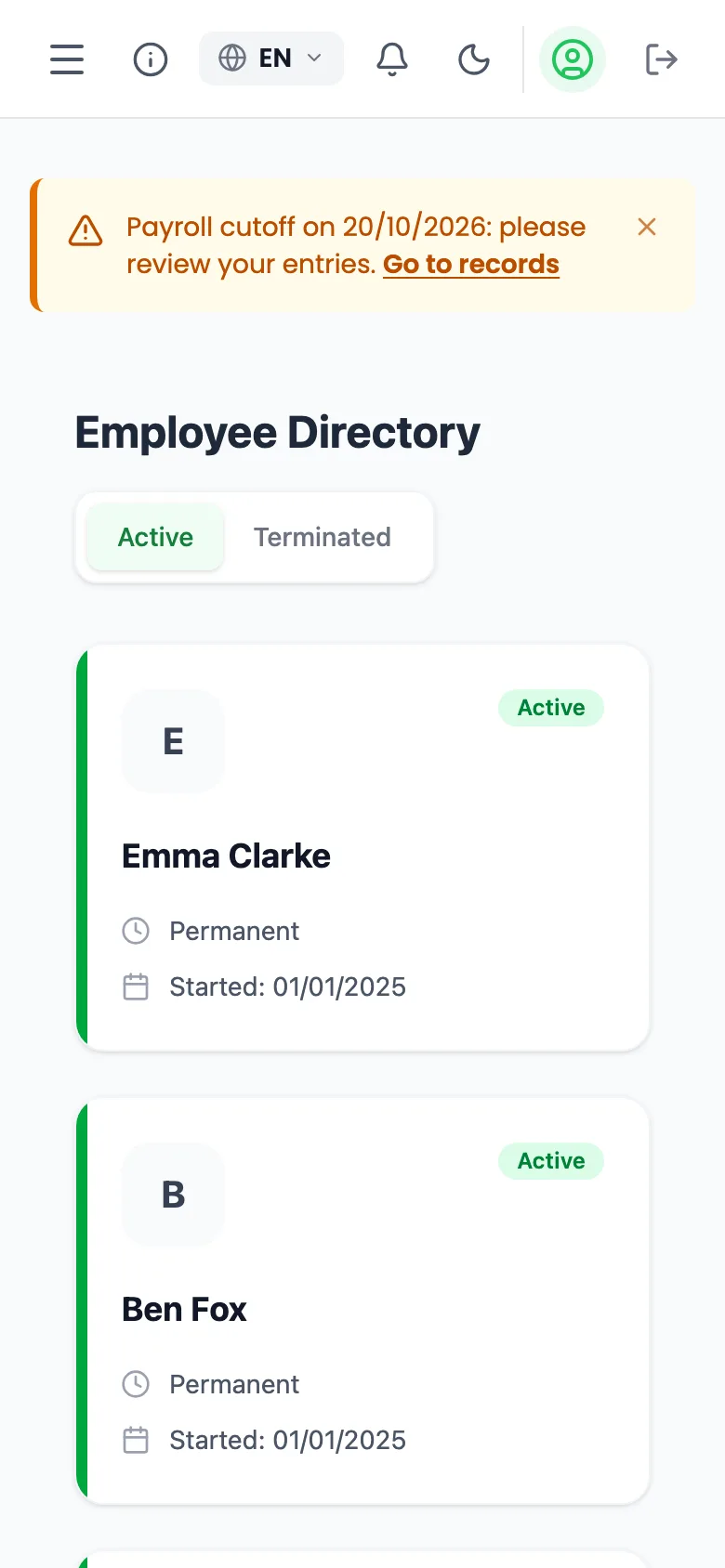
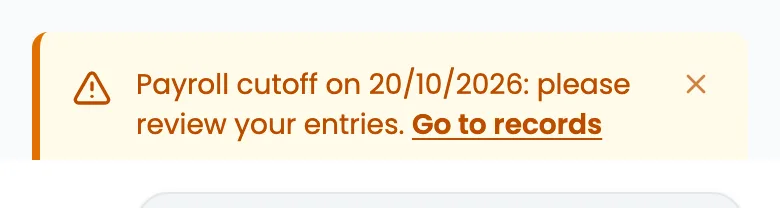
Some days before the payroll cut-off, a banner in the app, an email and a push message in the phone app remind you to report everything still missing. Your payroll firm decides how many days before. The banner reads: Payroll cut-off on followed by the date, then please review your entries. On the day itself it says the cut-off is today.
Settings
- Open Settings.
- Choose your language under Language, and Light or Dark mode.
- Use Download my data (CSV) to export your data.
- Use Delete Account to remove your account. You must confirm with Delete Forever.
From entry to payroll
Diurna follows one path each month. There is no separate approval step: closing the month is the approval.
- Set up once: the firm admin adds the client and invites the business owner. The clerk adds employees with their weekly schedules, which are the planned hours.
- During the month, the business owner (in the chat or in planning) or the clerk (in planning or records) records the exceptions.
- Each entry is checked at once. Errors block saving. Warnings need a reason.
- Before the cut-off, reminders go to the business owner, on the days the firm admin set, and to the firm. The clerk checks the records and fixes what is wrong, with the business owner if needed.
- The clerk closes the month. If the firm configured it, the cut-off also locks the previous month. From then on nothing changes, but the firm admin can reopen the month with a reason.
- Handover to payroll: the clerk exports time and attendance as CSV or Excel (XLSX) and uses it in the payroll software.
Short videos
The video is available in the app under Documents.
The firm admin adds a client, switches modules, invites a clerk and assigns the client, then sets the cut-off and the reminder days.
The video is available in the app under Documents.
The clerk picks the client, plans an extra shift, checks the records, closes the month and exports.
The video is available in the app under Documents.
The business owner reports a sick day on the phone, checks the entries and sees the reminder banner.
Quick answers
What if I forgot my password?
Select Forgot password? on the sign-in page, then Send Reset Link, and follow the email.
What if the invitation email did not arrive?
Ask your payroll firm. The firm admin can use Resend Password Reset on the client's Users tab.
I signed up alone in the phone app. Is my business connected to my payroll firm?
No. Signing up alone creates a separate business. Contact your firm and use the invitation they send. If needed, the firm contacts Diurna support at www.diurna.eu.
Can employees use the app?
No. Employees have no login. Their weekly schedule is their planned working time.
Why can I not save an entry?
A red error means a limit set for the client is exceeded: change the times. An amber warning still lets you save if there is a reason. In the chat, a warning can be accepted with Proceed anyway.
Can I change last month?
Not after the close or the cut-off. The firm admin can reopen a month with a reason.
Who sees what?
Clerks see only their assigned clients. Business owners see only their own business. The firm admin sees everything of the firm.
Which languages are there?
Seven: Italiano, English, Français, Deutsch, Nederlands, Español and Português.
Can I use the phone and the computer?
Yes. Both use the same login.
Where is the help?
Use the (i) button in the page header, Help for this page. This guide is under Documents, in System Guides.
What happens at the cut-off?
The period locks. Reminders go out before it.
Who do I ask for support?
Diurna support at www.diurna.eu, through your payroll firm.
Coming soon
- AI chat for the firm and its clerks
- Task center
- Time recording by employees and employee self-service
- Document upload in the chat
- A compliance overview over longer periods