Diurna User Guide
Getting started
This guide is for everyone who uses Diurna: the payroll firm's admin, the clerks, and the owners of the client businesses.
Diurna helps a payroll firm and its client businesses (restaurants, hotels, cafés) record what differs from the planned working time, so that the firm can hand correct hours to payroll at the end of each month.
Four kinds of people are involved.
| Who | What they do |
|---|---|
| Firm admin | Sets up the firm, adds client businesses, invites clerks and business owners, switches modules on and off, sets the payroll cut-off and the reminder days, and can reopen a closed month. |
| Clerk | Works on the clients assigned to them: adds employees, plans, checks entries, closes the month and hands over to payroll. |
| Business owner | Runs the client business. Reports sick days, holidays, overtime and other changes in a chat, and checks the entries. |
| Employees | Have no login and no app. Their weekly schedule is their planned working time. |
Use the web app at app.diurna.eu or the phone app Diurna, available in the App Store and Google Play. The login is the same on both. The firm admin and clerks start on the Dashboard. The business owner starts in the Chat Assistant.
Your first login
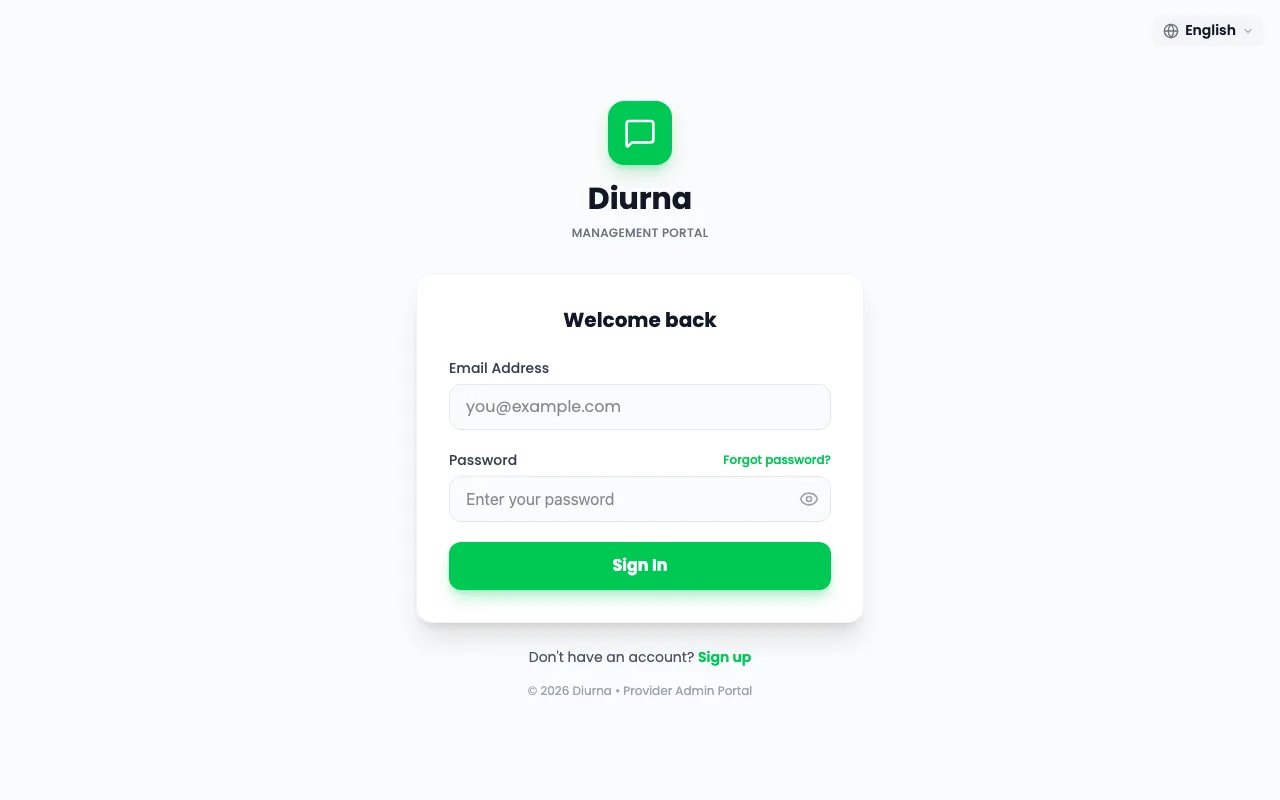
- The firm signs up on the web app. Diurna approves the firm, and an email with a link follows.
- Open the link and set your password.
- Select Sign In, then read and accept the Terms & Conditions with I Accept or Accept All.
- The firm admin completes the Complete Your Setup form: Contact Name, Contact Email, Country and Company Name.
- Follow the short guided tour. You can restart it under Settings, tab General.
The country cannot be changed after this step. If it needs to change, contact Diurna support at www.diurna.eu.
Clerks and business owners do not sign up. The firm admin invites them by email, and they set a password from the link. A business owner must use that invitation. Signing up alone in the phone app creates a separate business that is not a client of the firm.
Good to know
- Diurna logs you out automatically after 15 minutes without activity. A warning, Session Expiring, appears first, with Stay Logged In.
- Forgot your password? Use Forgot password? on the sign-in page.
- In the phone app you can lock the app with Face ID or a fingerprint: switch on Biometric unlock in Settings.
- Seven languages are available: Italiano, English, Français, Deutsch, Nederlands, Español and Português. Choose yours under Settings, Language. You can also pick Light or Dark mode there.
- The Documents page holds the legal documents and this guide.
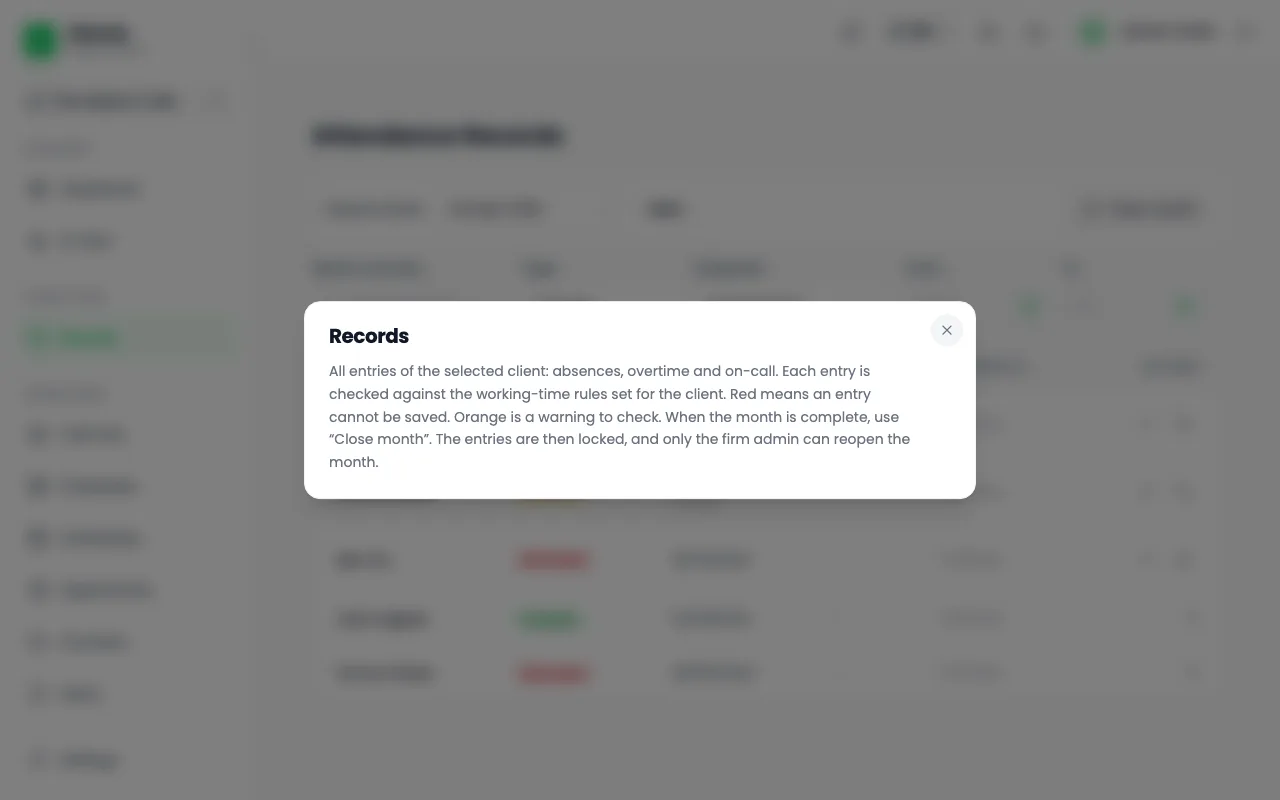
- Every main page has an (i) button in its header, Help for this page. It opens a short explanation and, where one exists, a short video with captions and voice.
- Notifications appear in the app. Some also arrive by email and, in the phone app, as push messages.