Diurna User Guide
Part 1: For the firm admin
This part is for you if you run the payroll firm in Diurna. You set things up once. Planning and reports are the clerk's work, not yours.
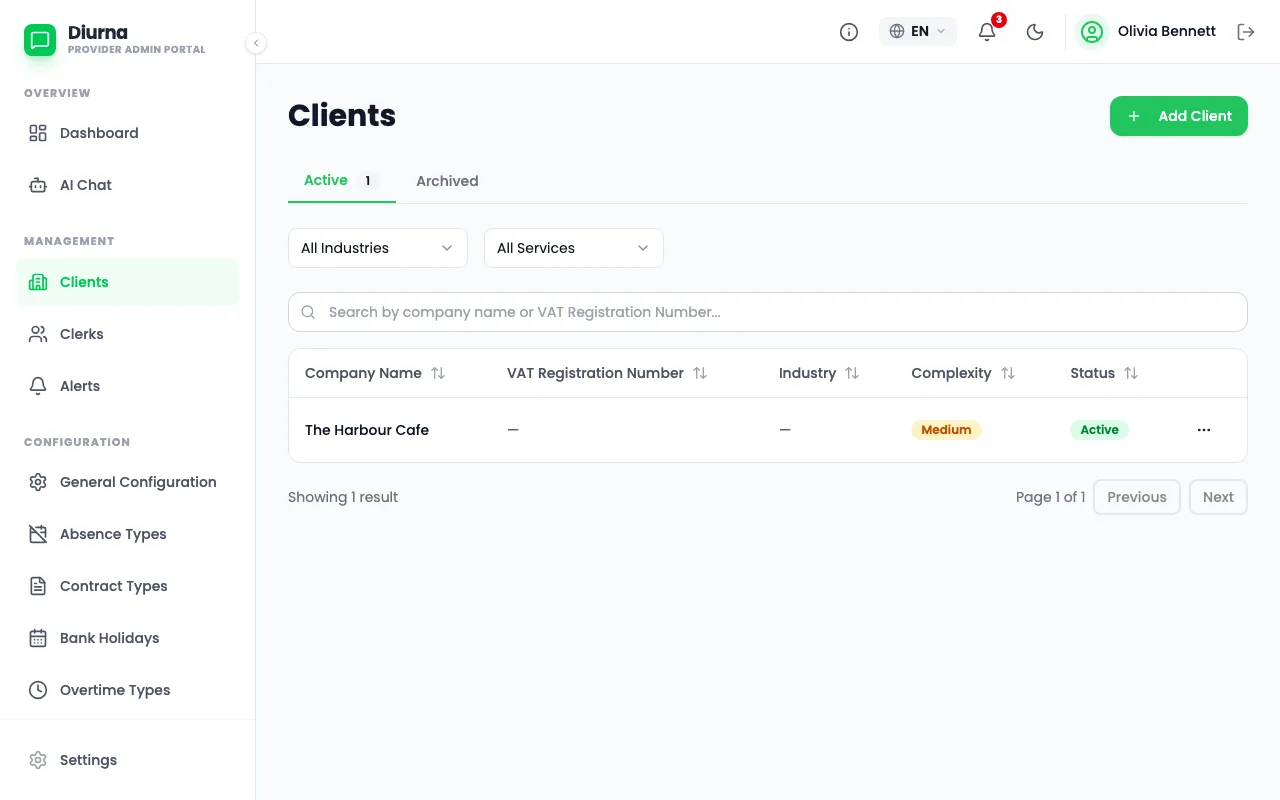
Add a client business
- Open Clients and start a new client.
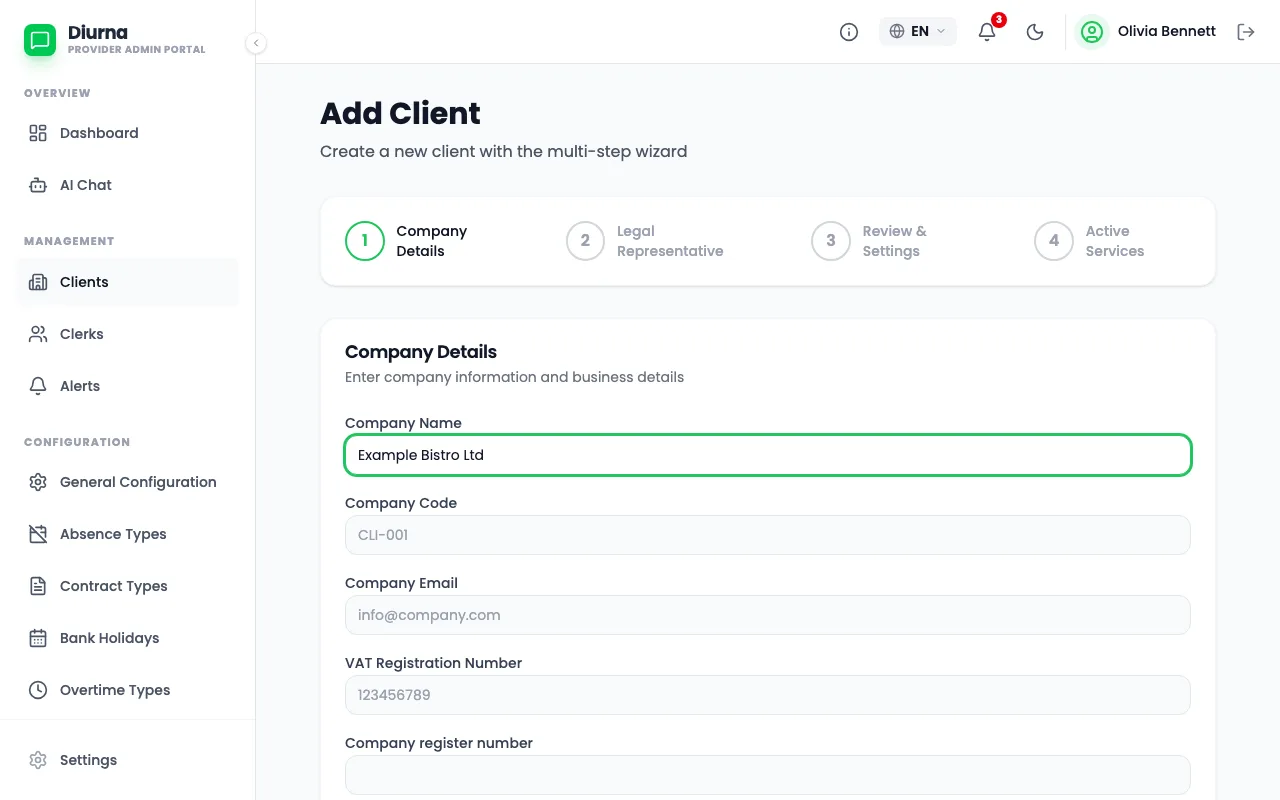
- Go through the four steps: Company Details, Legal Representative, Review & Settings and Active Services.
- In Review & Settings, enter or review the limits for this client, such as the maximum hours per day and per shift.
- Select Create Client. The Users tab opens with the invite dialog ready.
You do not choose a labor profile. Diurna applies the generic rules automatically, which means only the limits you set for the client. A client business in Austria always gets the Austrian rules, never the generic ones.
Invite the business owner
- Open the client and go to the Users tab.
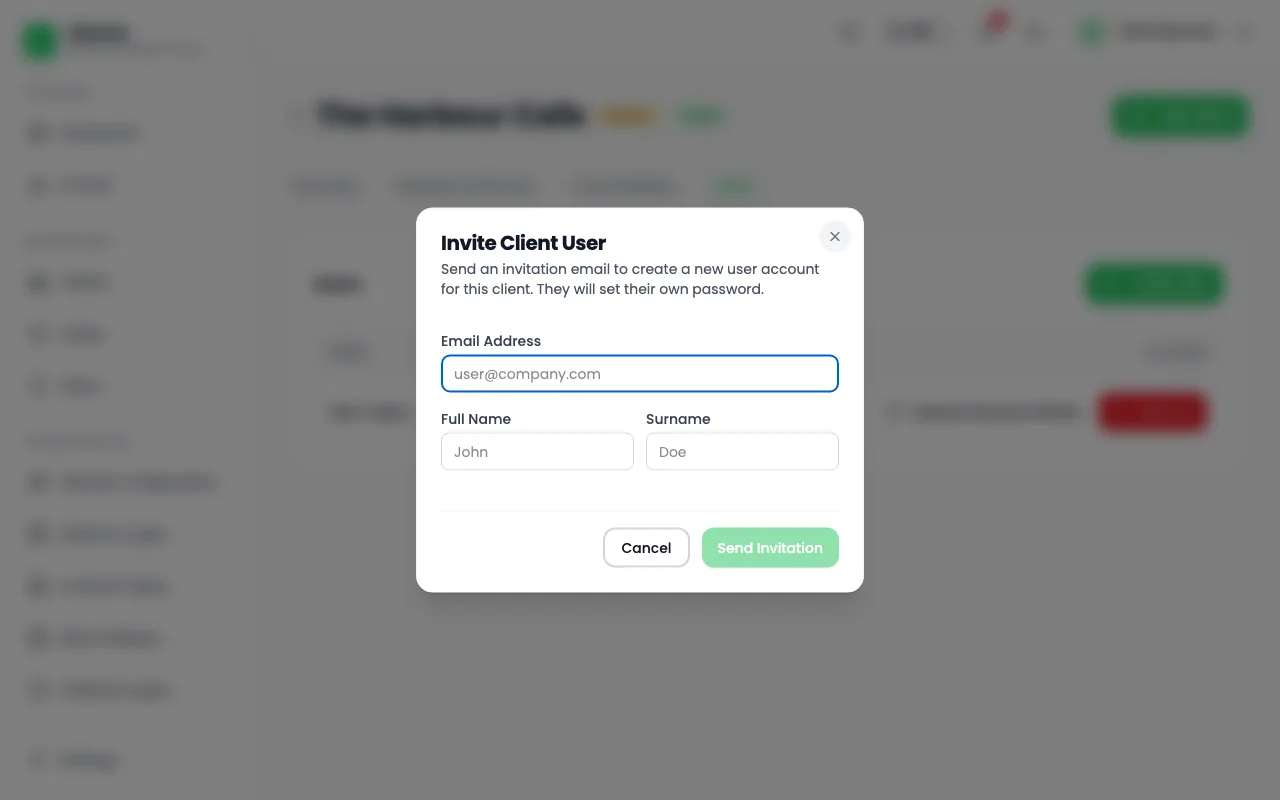
- Select Invite User. The Invite Client User dialog opens.
- Enter Full Name (the first name), Surname and Email Address, then select Send Invitation.
- The business owner gets an email and sets a password.
- If the email got lost, use Resend Password Reset on the user's row.
Switch modules for a client
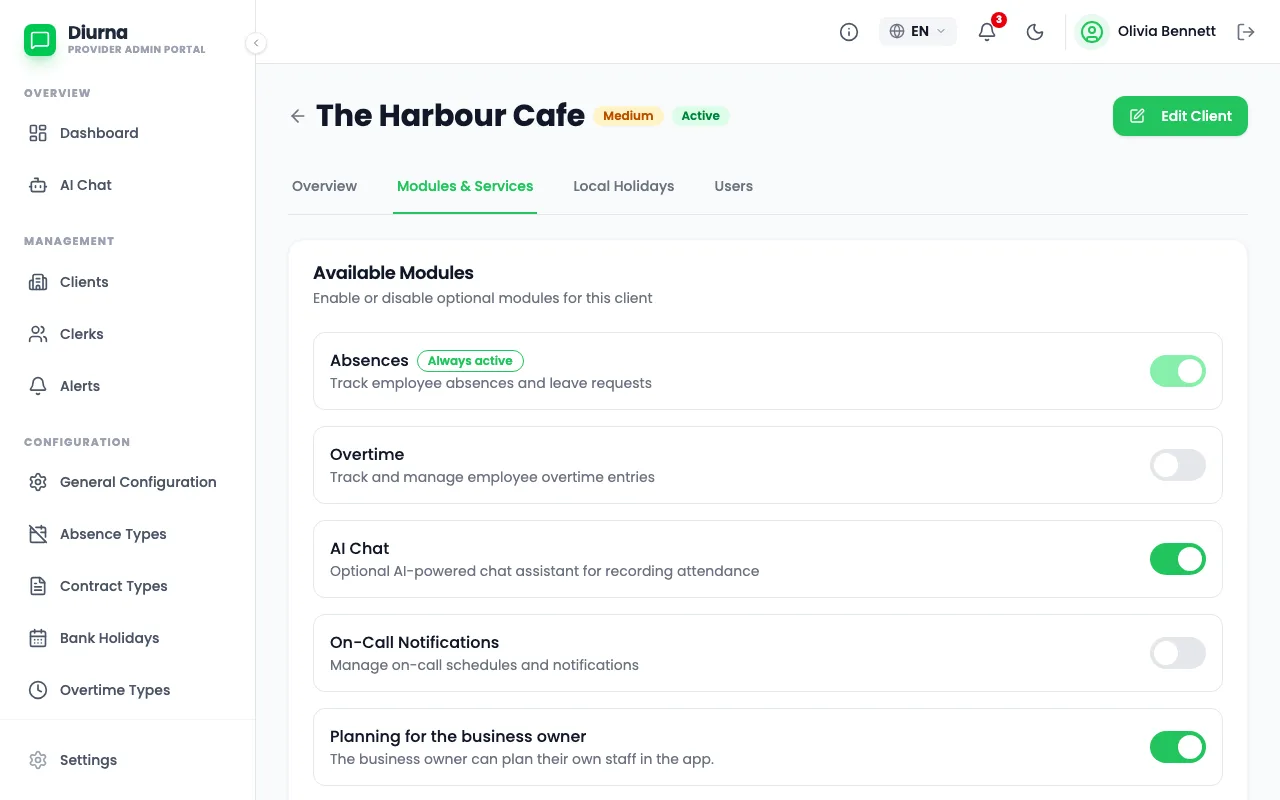
- Open the client and go to the Modules & Services tab, under Available Modules.
- Absences is always on.
- Switch Overtime, AI Chat, On-Call Notifications and Planning for the business owner on or off.
- Select Save Changes.
A new client starts with AI Chat on, planning on, overtime off and on-call off.
The other tabs are Overview, Local Holidays and Seasons.
Invite clerks
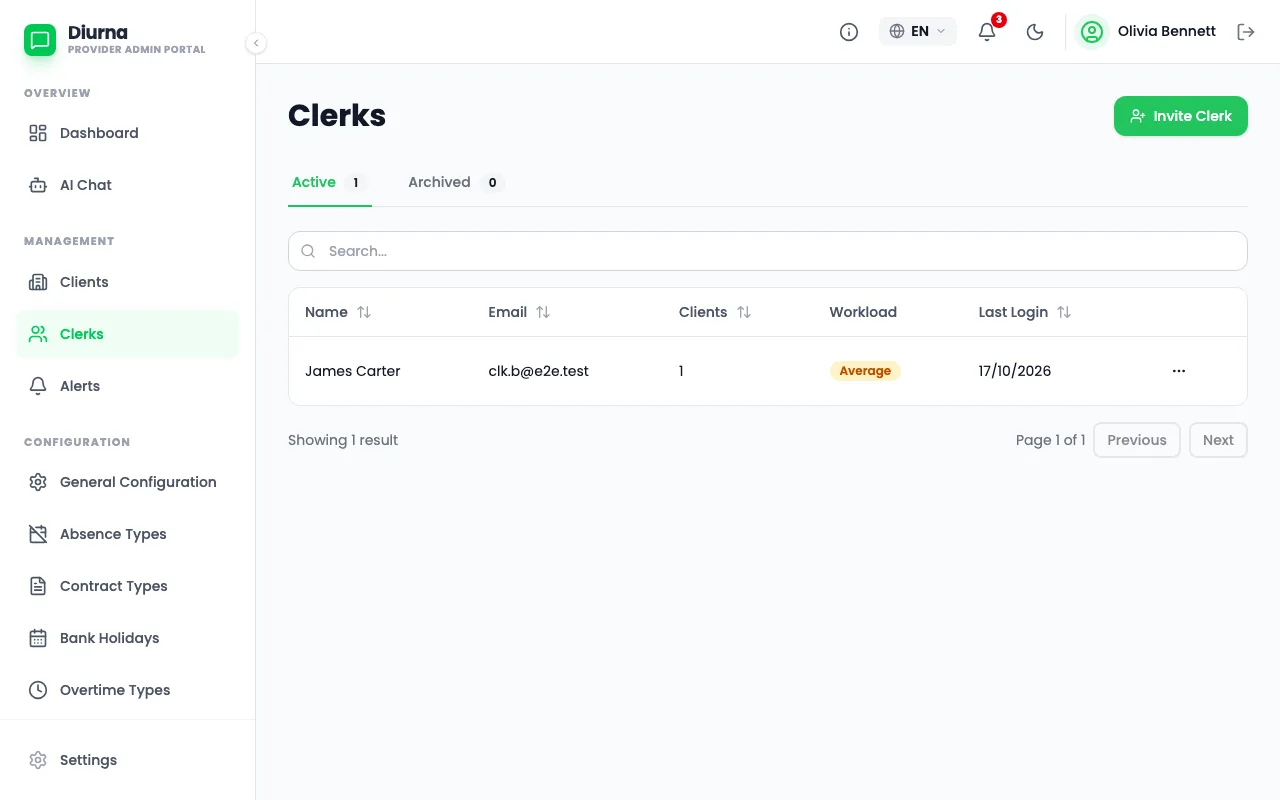
- Open Clerks and select Invite Clerk.
- Enter the name and email, then select Send Invitation.
- The clerk gets an email and sets a password.
Assign clients to a clerk
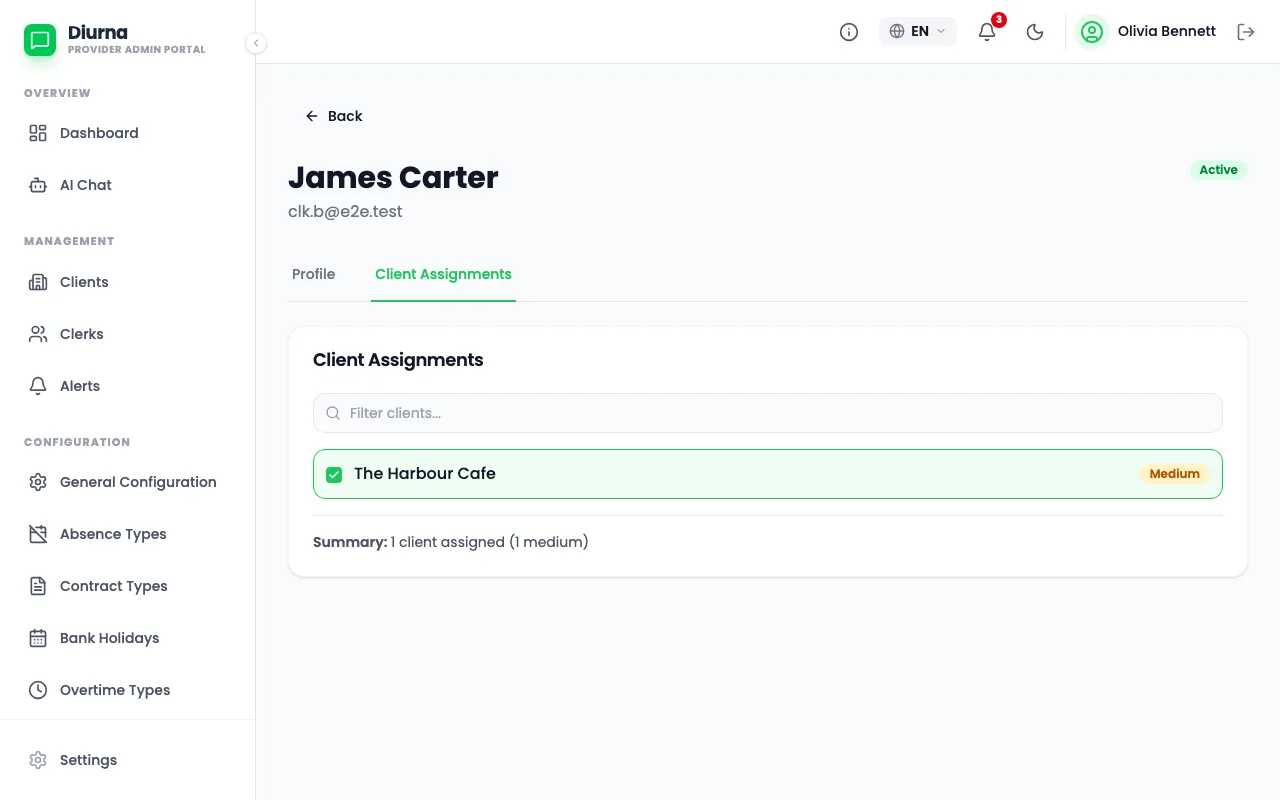
- Open Clerks and open the clerk.
- Under Available Clients, select the clients and choose Assign.
- They move to Assigned Clients. Use Unassign to take one back.
A client has exactly one clerk, and a clerk can have many clients. A client already taken shows Assigned to followed by the clerk's name. Archived clerks must be restored before you can assign clients.
Set the payroll cut-off
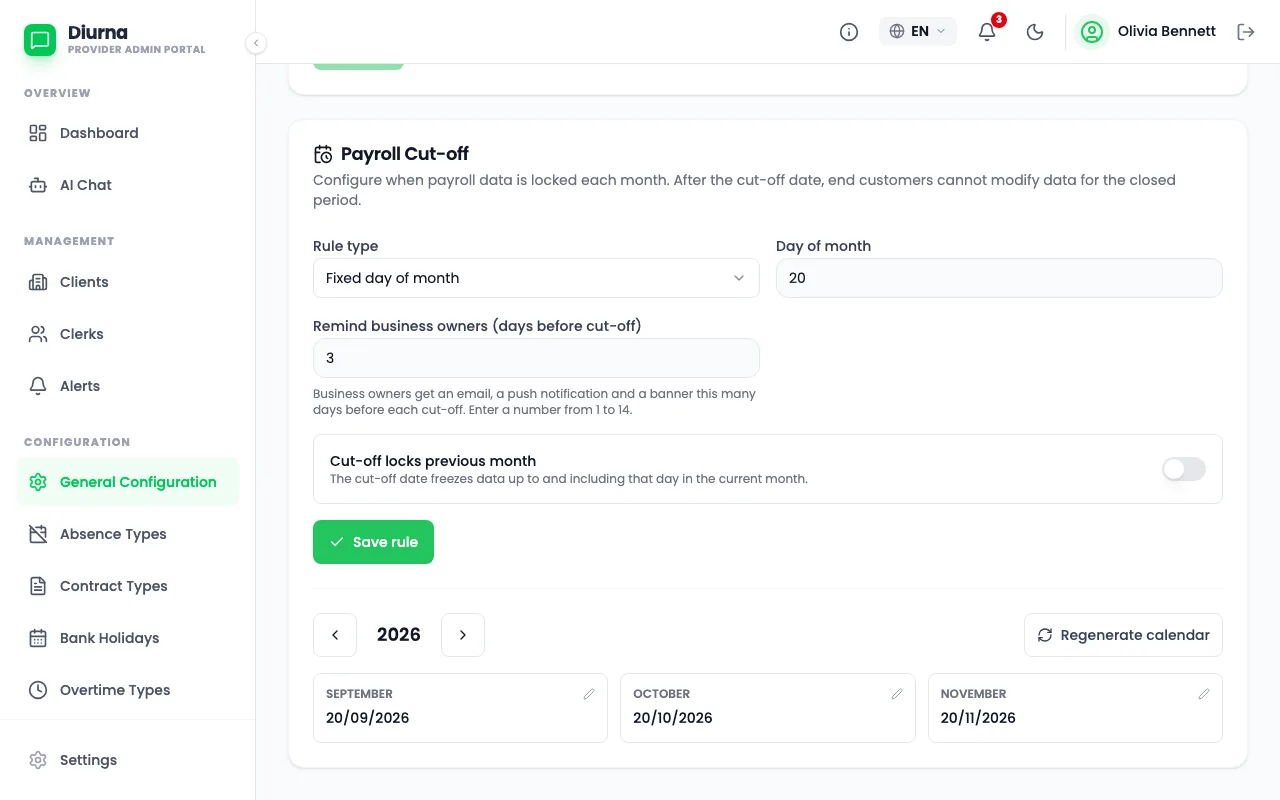
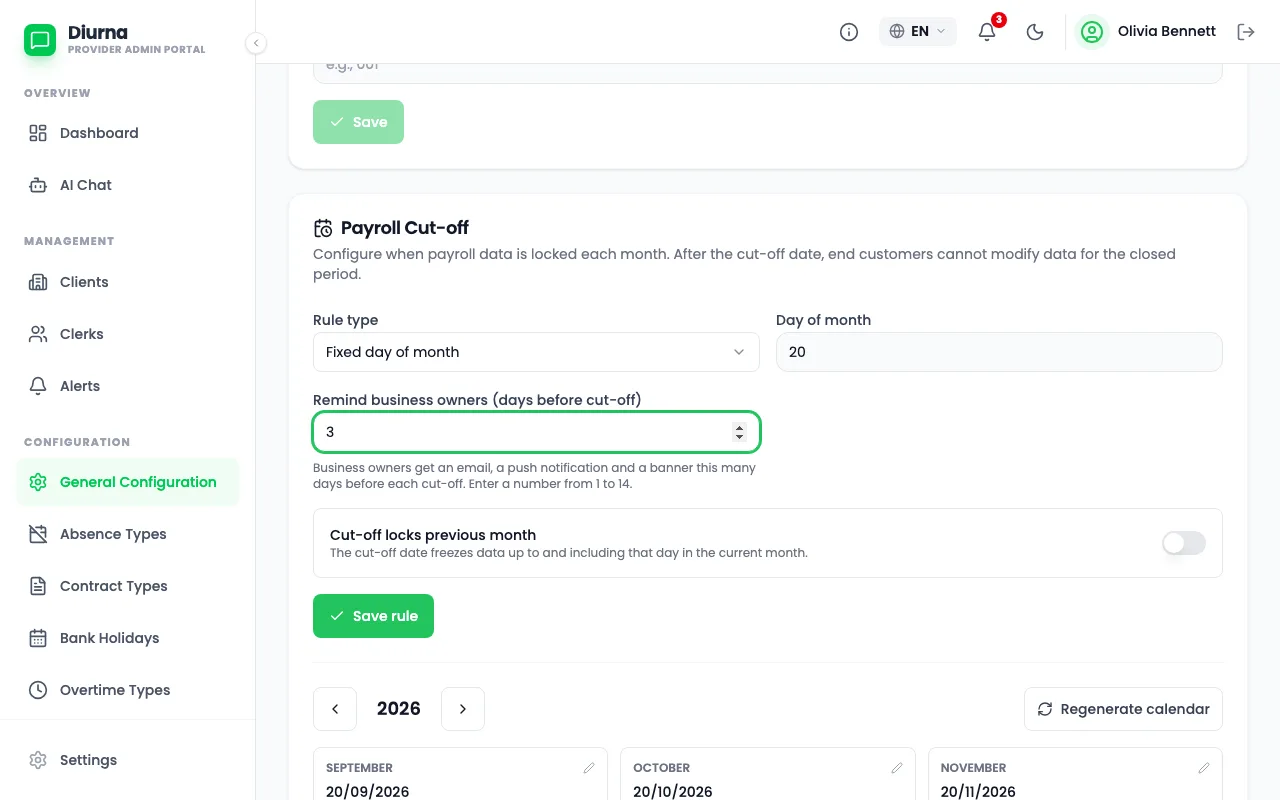
- Open General Configuration and find Payroll Cut-off.
- Under Rule type, choose Fixed day of month or Last weekday of month.
- If you want the cut-off to lock the previous month, switch on Cut-off locks previous month.
- Select Save rule, then Generate calendar.
One client can have its own cut-off: edit the client. On the same page you also set Date Format, Default Time Interval (from 1 minute to 1 hour) and the pay code for regular hours (Pay code: Regular Hours).
Set the business owner reminder days
- Open General Configuration and find the reminder setting under the payroll cut-off.
- Enter how many days before the cut-off the business owner is reminded.
- The default is 3. You can choose from 1 to 14.
- Select Save rule.
The owner then gets an email, a banner in the app and, in the phone app, a push message.
Keep the master data
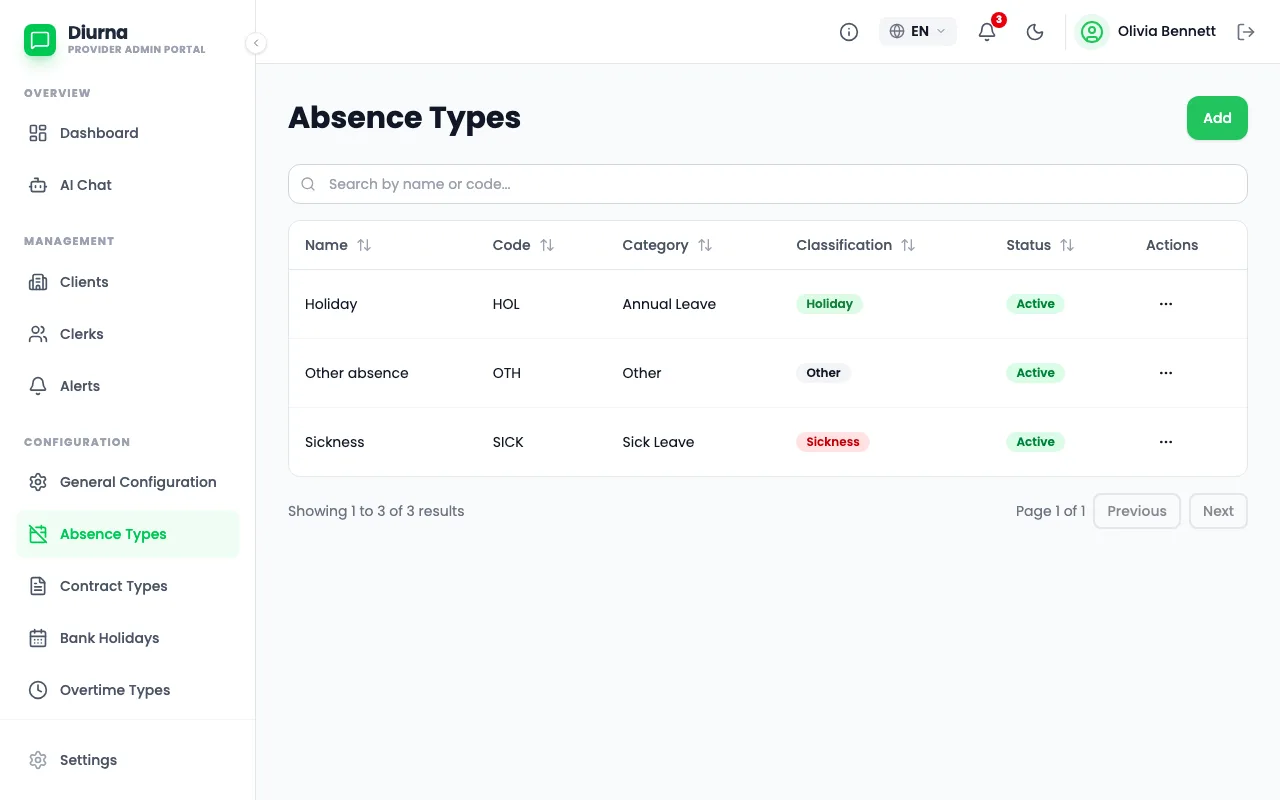
- Open Absence Types for the types of absence. Three defaults are ready: Holiday, Sickness and Other absence. The default overtime type is Overtime.
- Open Contract Types and Overtime Types to adjust them.
- Open Bank Holidays and add your country's holidays.
Diurna does not preload national holidays for the generic profile, so you add your own.
Reopen a closed month
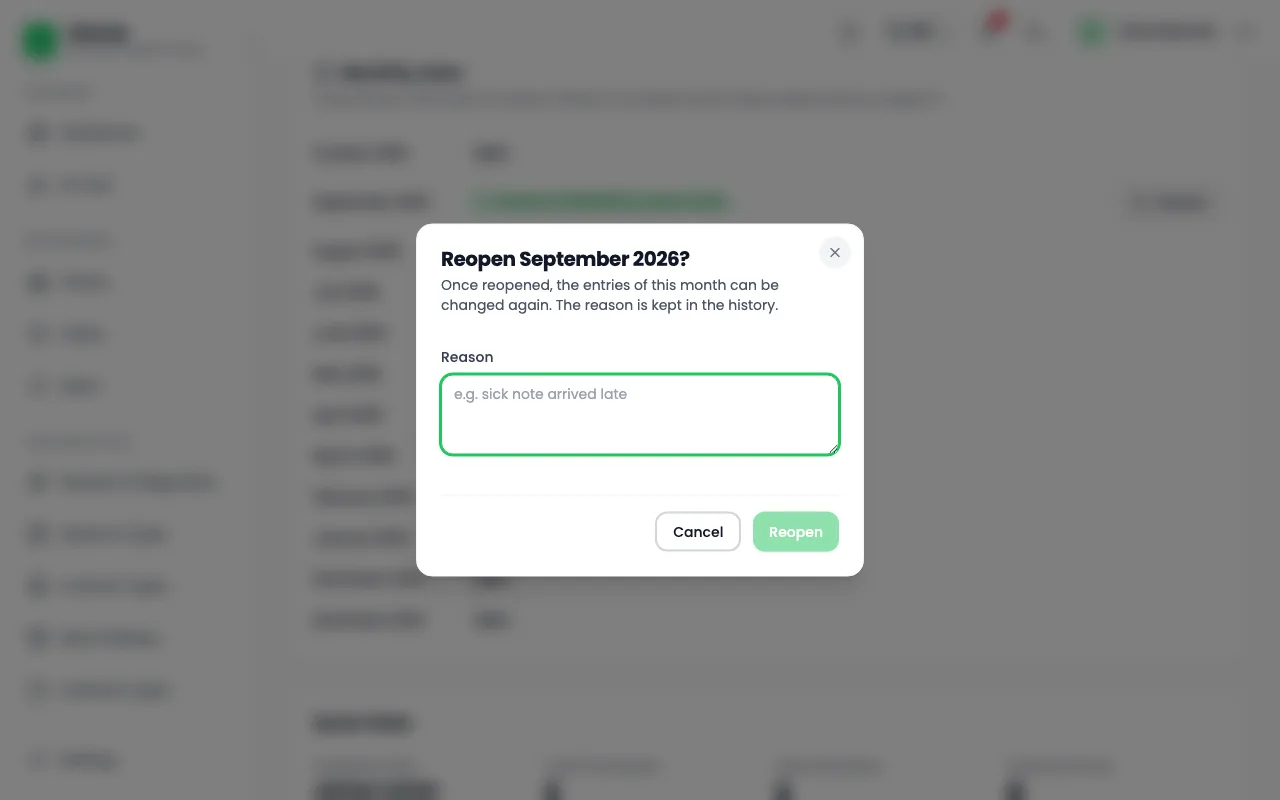
- Open the client. On the Overview tab, find the Monthly close card.
- Pick the closed month and select Reopen.
- Enter a reason under Reason.
- The clerk corrects the entries and closes the month again.
Only the firm admin can reopen a month. The reason is saved in the history.