Diurna User Guide
Part 3: For business owners
This part is for you if you run a client business. You report only what differs from the plan. A normal day, as planned, needs no entry.
Report a sick day, holiday, overtime or other absence
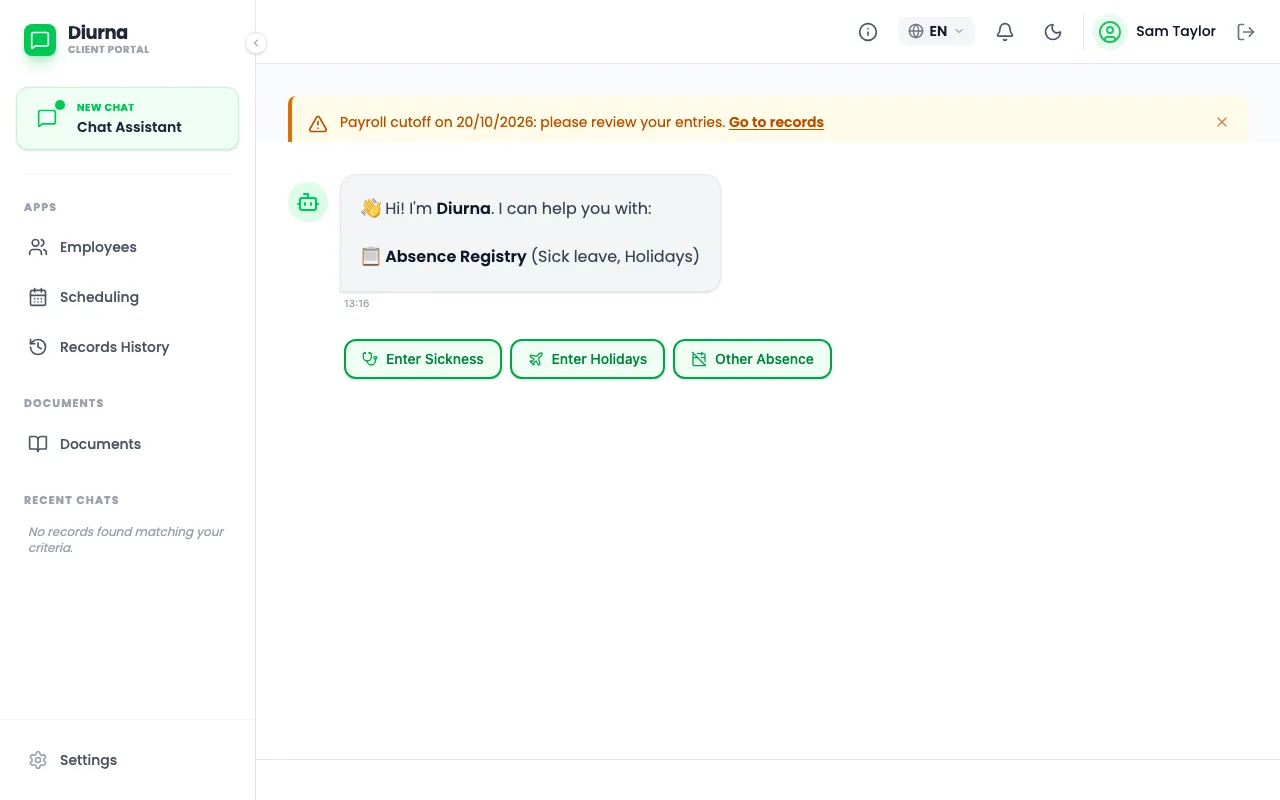
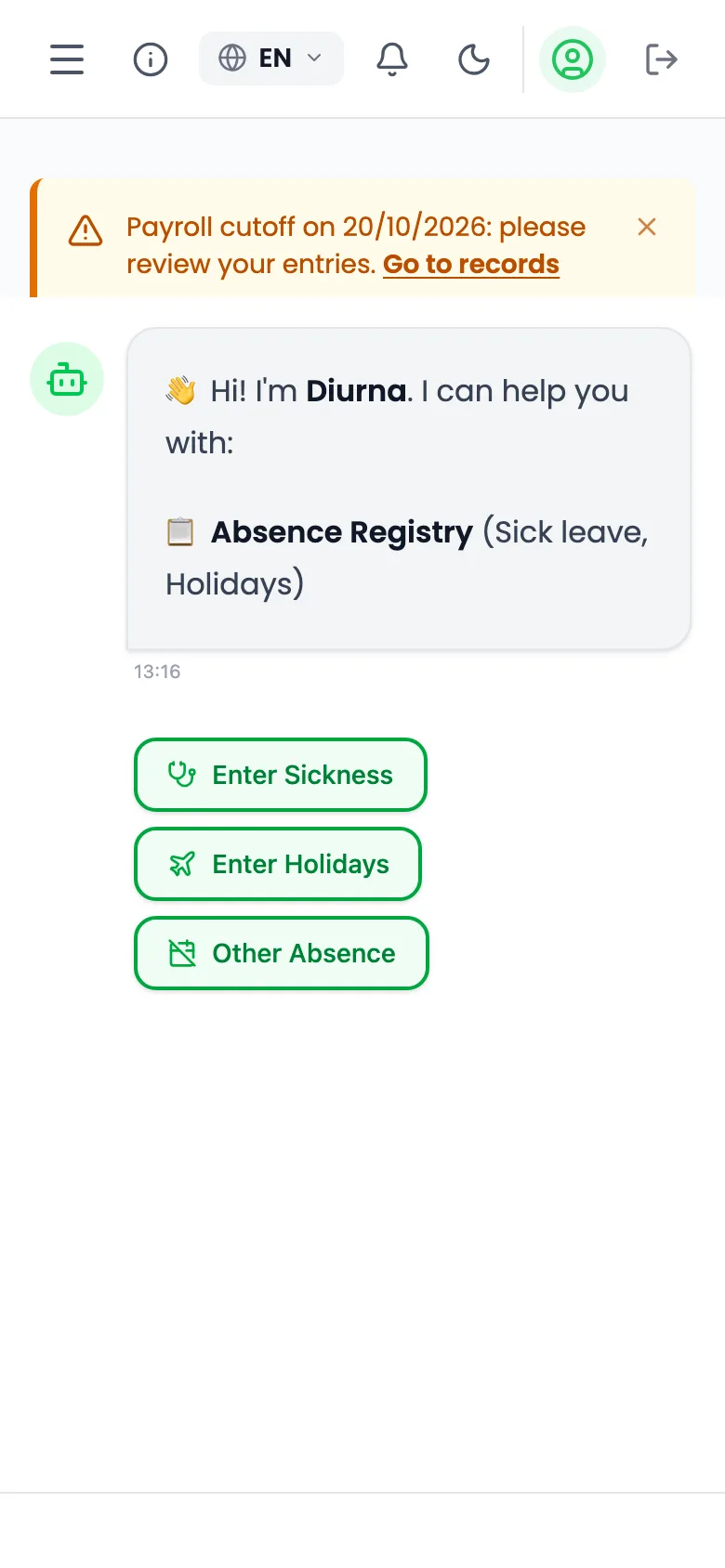
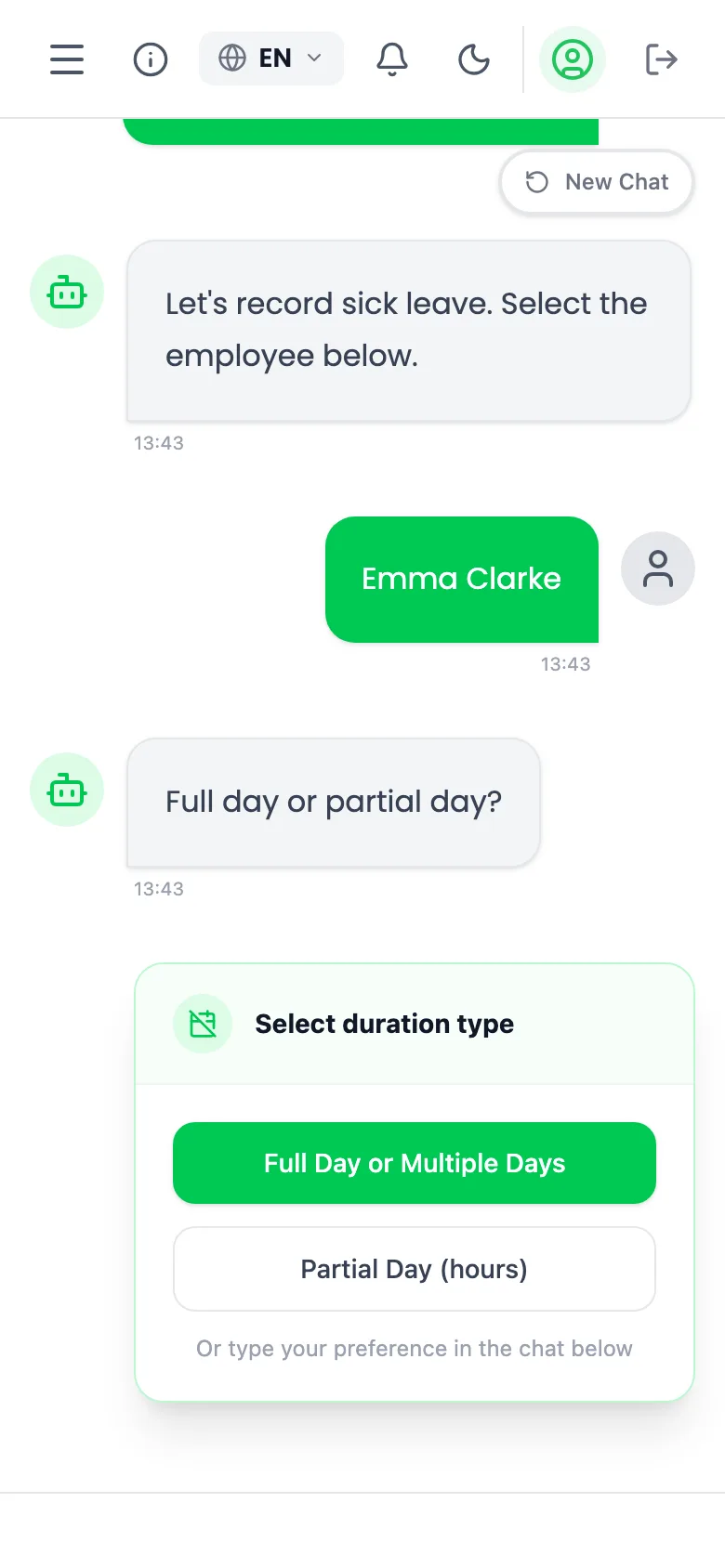
- Open the Chat Assistant. On the phone it is the first tab.
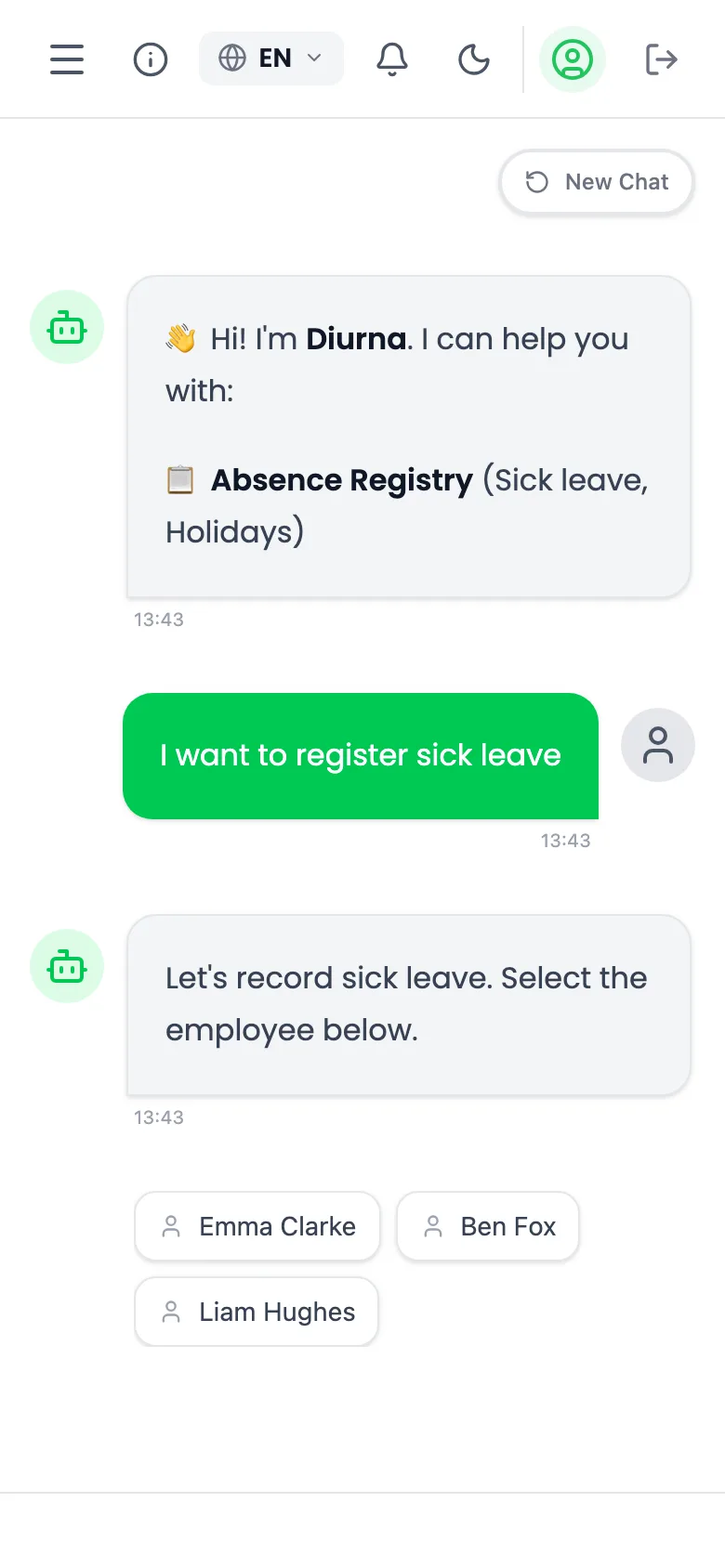
- Tap a button: Record Overtime, Enter Sick Leave, Enter Holidays, Other Absence or Plan / Cancel On-Call.
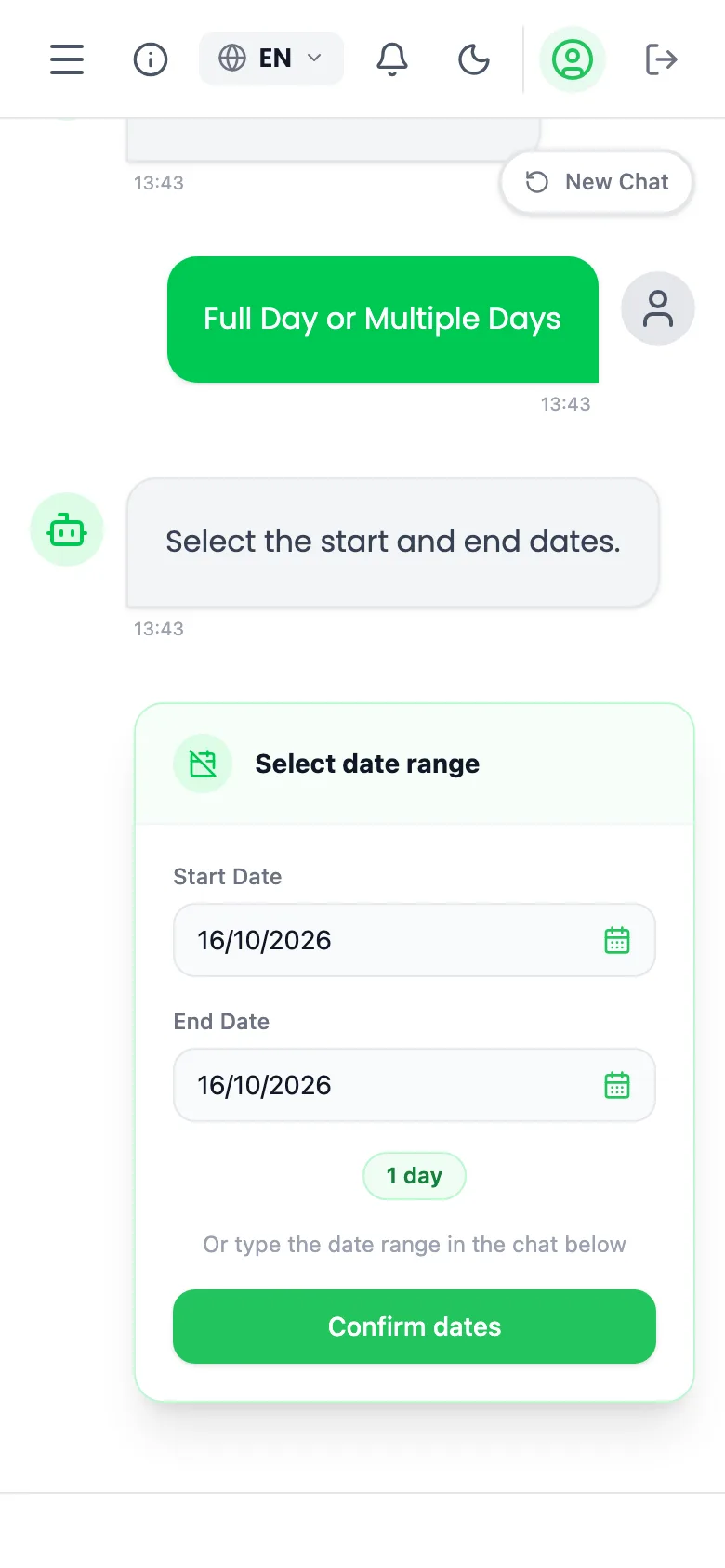
- Answer the questions: which employee, which day or days, and the times or duration.
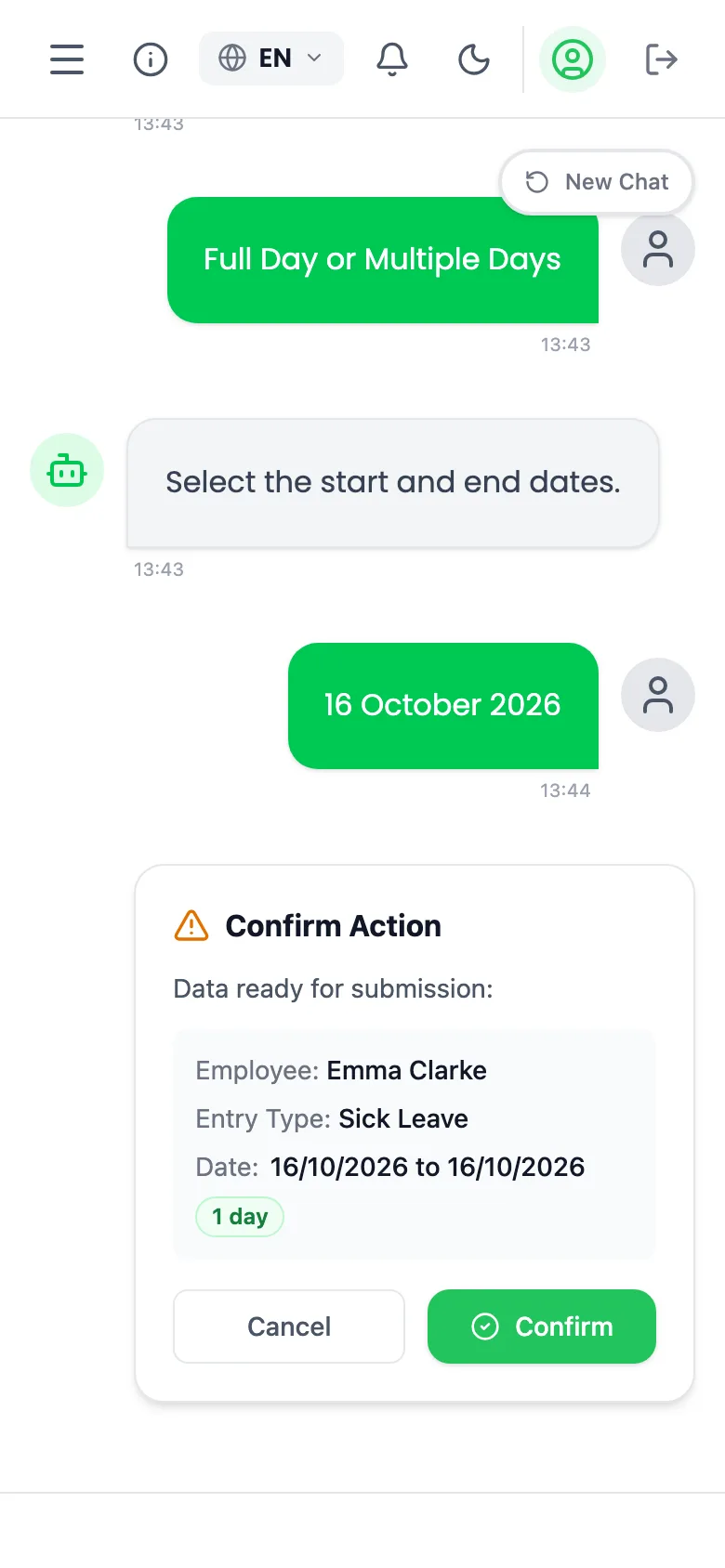
- Check the summary the assistant shows.
- Select Confirm.
If the report breaks a rule, the chat refuses it with a red message, or shows a warning you can accept with the Proceed anyway button.
You can also speak instead of typing: tap Voice Input. The app asks you not to enter health information or other sensitive personal data. Give only the names and dates the assistant asks for.
Use free text
- If your firm switched on AI chat, you can also write a sentence, for example "Anna is sick today".
- The assistant asks for whatever is missing.
- Read the summary carefully, because the assistant can make mistakes.
- Confirm only when it is right.
Check and fix entries
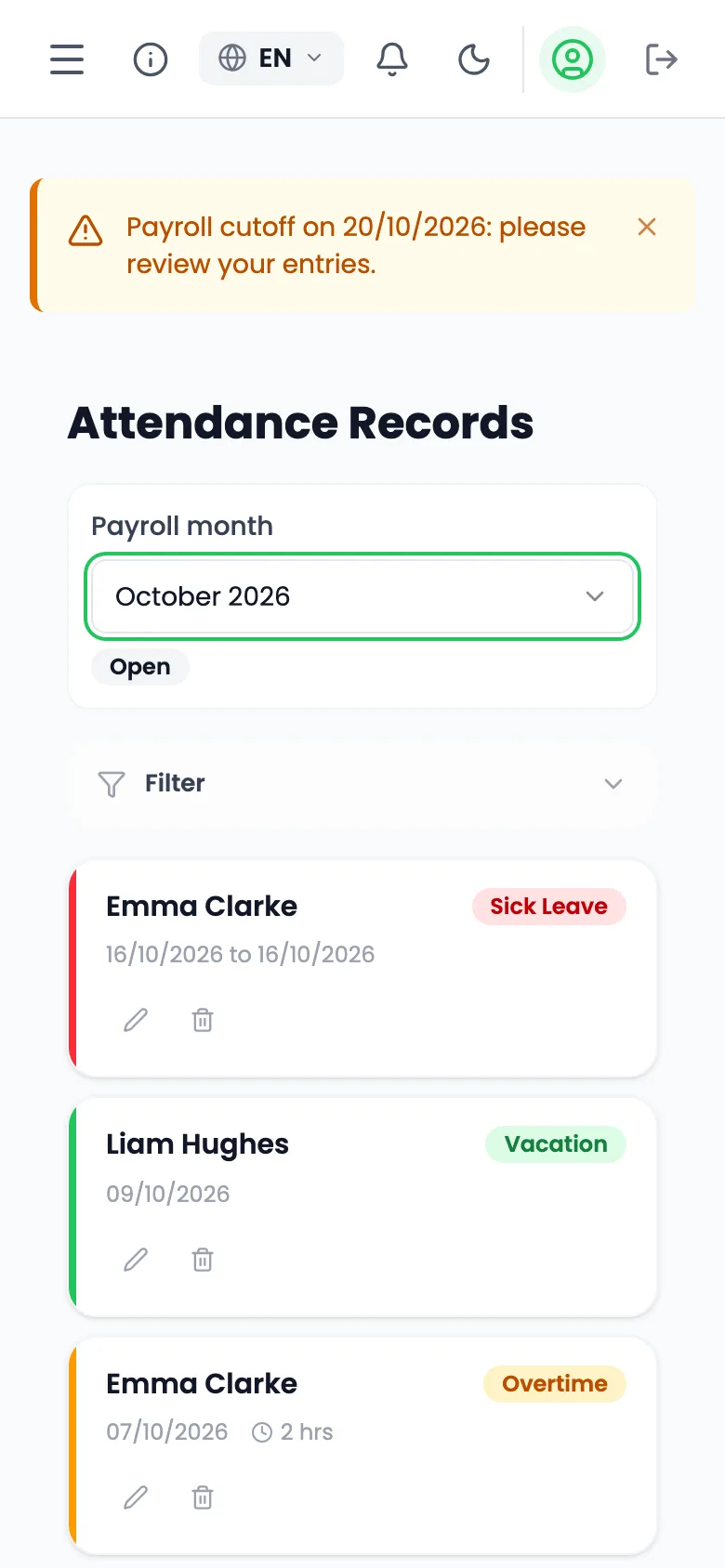
- Open Records History. On the phone, open the Records tab.
- Find the entry.
- Edit or delete it.
You can do this until the month is closed or the payroll cut-off has passed. After that, ask your payroll firm.
Plan shifts
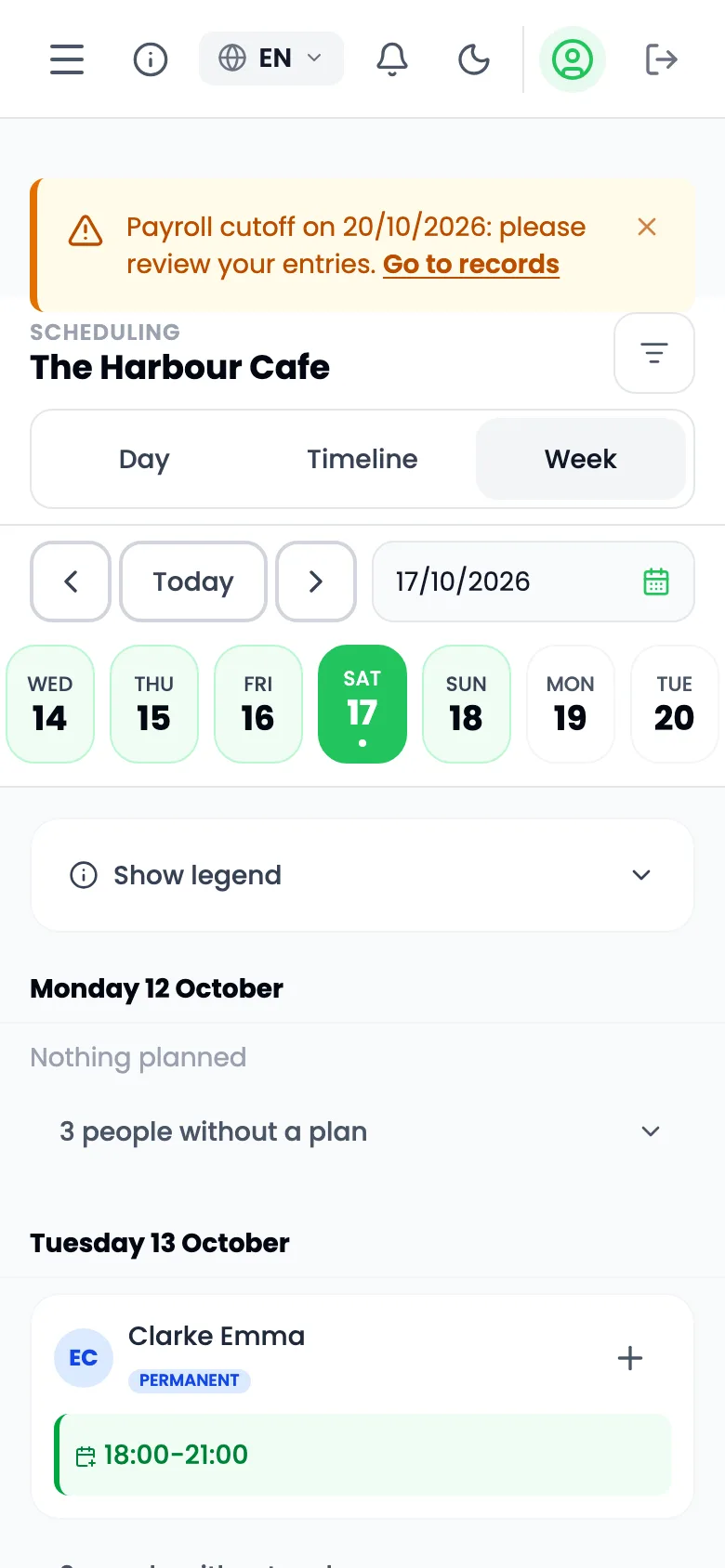
- If your firm switched planning on, open Scheduling. On the phone, open Planning.
- Plan the same way as a clerk: choose a cell and an entry type.
- Save the entry.
See your staff
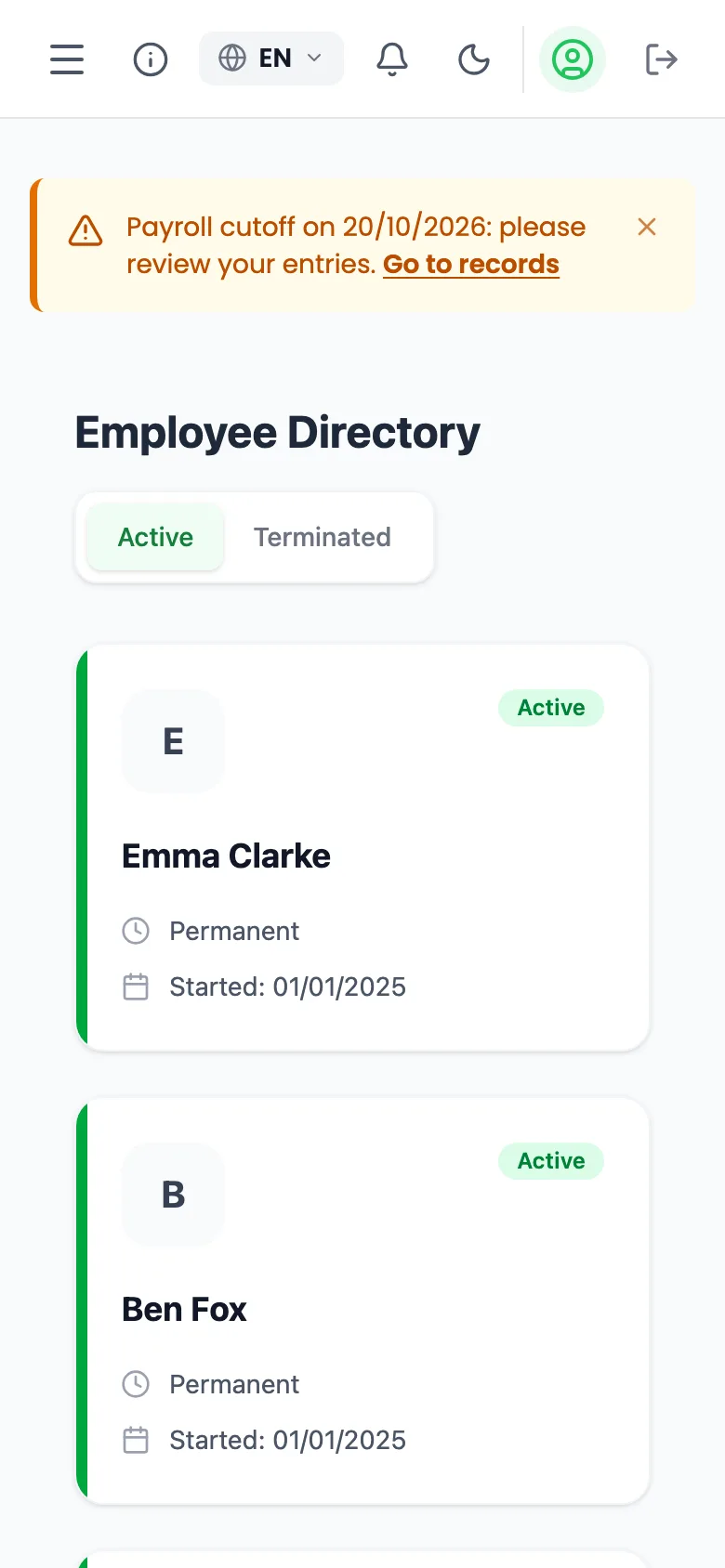
- Open Employees.
- You can read the list but not change it.
- New employees are added by your payroll firm.
The reminder
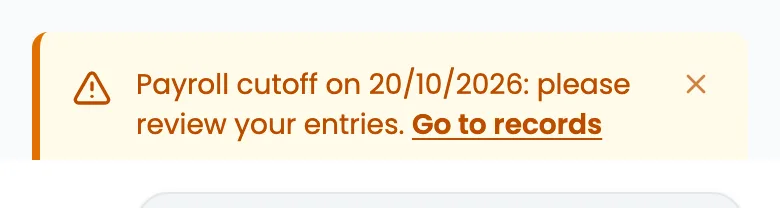
Some days before the payroll cut-off, a banner in the app, an email and a push message in the phone app remind you to report everything still missing. Your payroll firm decides how many days before. The banner reads: Payroll cut-off on followed by the date, then please review your entries. On the day itself it says the cut-off is today.
Settings
- Open Settings.
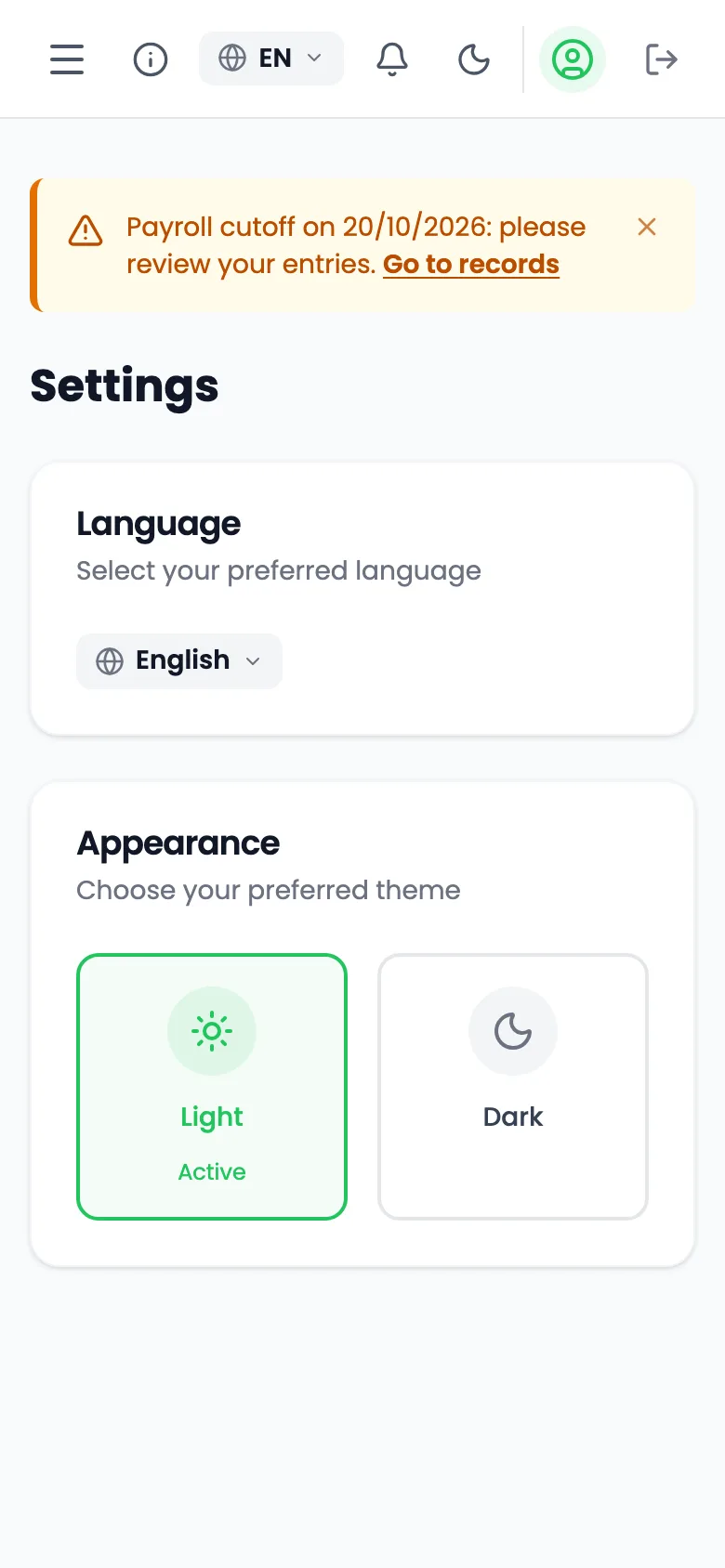
- Choose your language under Language, and Light or Dark mode.
- Use Download my data (CSV) to export your data.
- Use Delete Account to remove your account. You must confirm with Delete Forever.